Welcome to MidZoom
MidZoom is a booking plugin for video calls. Your clients pick a service, a day and a time on your website, pay if needed, and instantly receive a confirmation with their Google Meet or Zoom link. You manage everything from one clean screen in WordPress.
New to MidZoom? Follow Installation, Activate your license and the 10-minute setup. Everything else can be set up later, whenever you need it.
Requirements
- WordPress 5.8 or newer.
- PHP 7.4 or newer (PHP 8.1+ recommended). The standard
sodiumextension is used for encryption; it is enabled on almost every host. - HTTPS (an SSL certificate) on your site. PayPal and Google require it, and it protects your clients’ data.
- Optional: WooCommerce if you want to take payments with WooCommerce gateways.
Installation
- In your WordPress admin, go to Plugins → Add New → Upload Plugin.
- Choose the
midzoom.zipfile you downloaded after your purchase and click Install Now. - Click Activate. MidZoom opens its activation screen automatically.
On activation MidZoom creates its database tables, one example service and a page called Payment (with the [midzoom_payment] shortcode). Nothing is shown to your visitors until you add the booking form to a page.
Activate your license
MidZoom stays locked until your license key is activated: only the activation screen opens in the admin, and the booking form shows “Online booking is temporarily unavailable” to visitors.
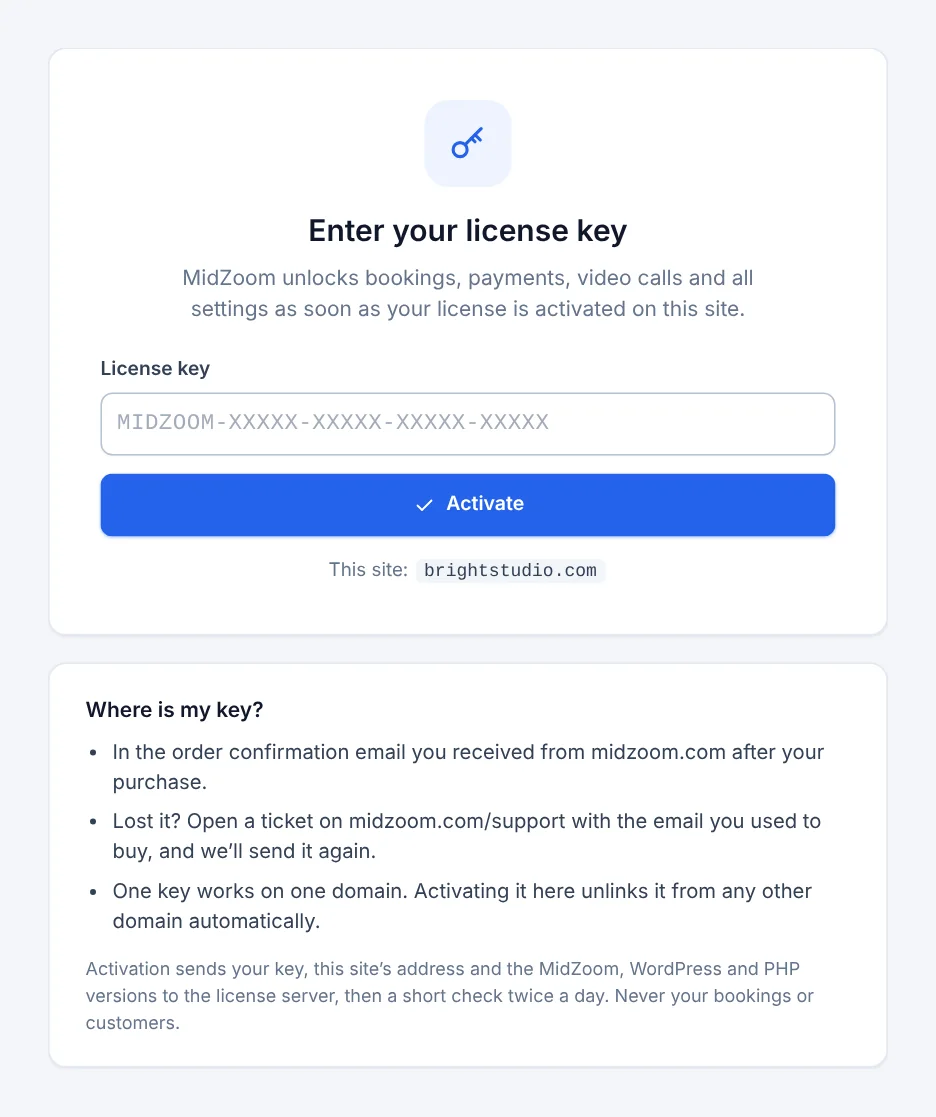
- Find your key. It looks like
MIDZOOM-XXXXX-XXXXX-XXXXX-XXXXXand is in the email you received right after your purchase on midzoom.com (no account needed). Lost it? Open a ticket and we’ll send it again. - Open MidZoom in your WordPress menu, paste the key and click Activate.
- That’s it: all screens unlock and the booking form opens.
Until activation, WordPress also reminds you on the dashboard and on the Plugins screen:


localhost, *.local, *.test) are free and don’t use your key. See License & updates.10-minute setup
The fastest way to a working booking page:
- Your business — Settings → General: business name, your email (where you receive new bookings) and a public contact email.
- Time zone — check WordPress Settings → General → Timezone. All times use it.
- Services — Services: rename the example service, set call lengths and prices.
- Working hours — Services → Working hours: your weekly availability.
- Booking page — create a page and add the
[midzoom]shortcode (details). - Video calls — connect Google Meet or Zoom, or set a backup meeting link.
- Email delivery — set up SMTP so your emails reach the inbox, then send yourself a test.
- Payments (optional) — On-site, PayPal or WooCommerce.
- Reminders on time — add the server cron job.
Then make a test booking from your page with your own email address.
Add the booking form to a page
- Go to Pages → Add New (or open an existing page).
- Add a Shortcode block and type
[midzoom]. In Elementor, Divi or any other builder, use their “Shortcode” or “Text” widget. - Publish the page. The form takes the full width of your content area and uses your theme’s font.
Each service also has its own shortcode (shown in Services) such as [midzoom service="6"], to open the form directly on that service — handy for a “Book a strategy session” button on a sales page.
{booking_page_url} link in messages (“book another call”).How your clients book
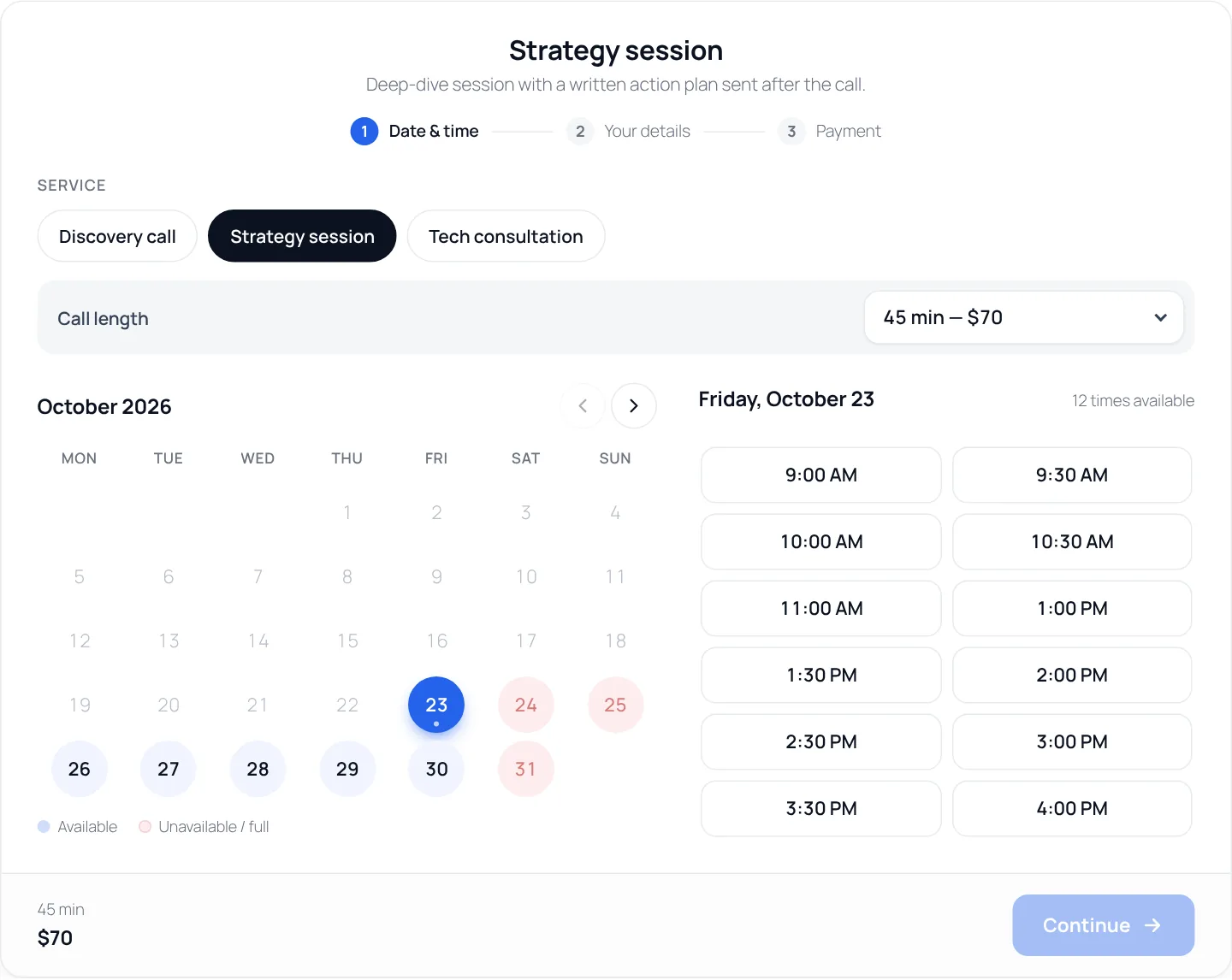
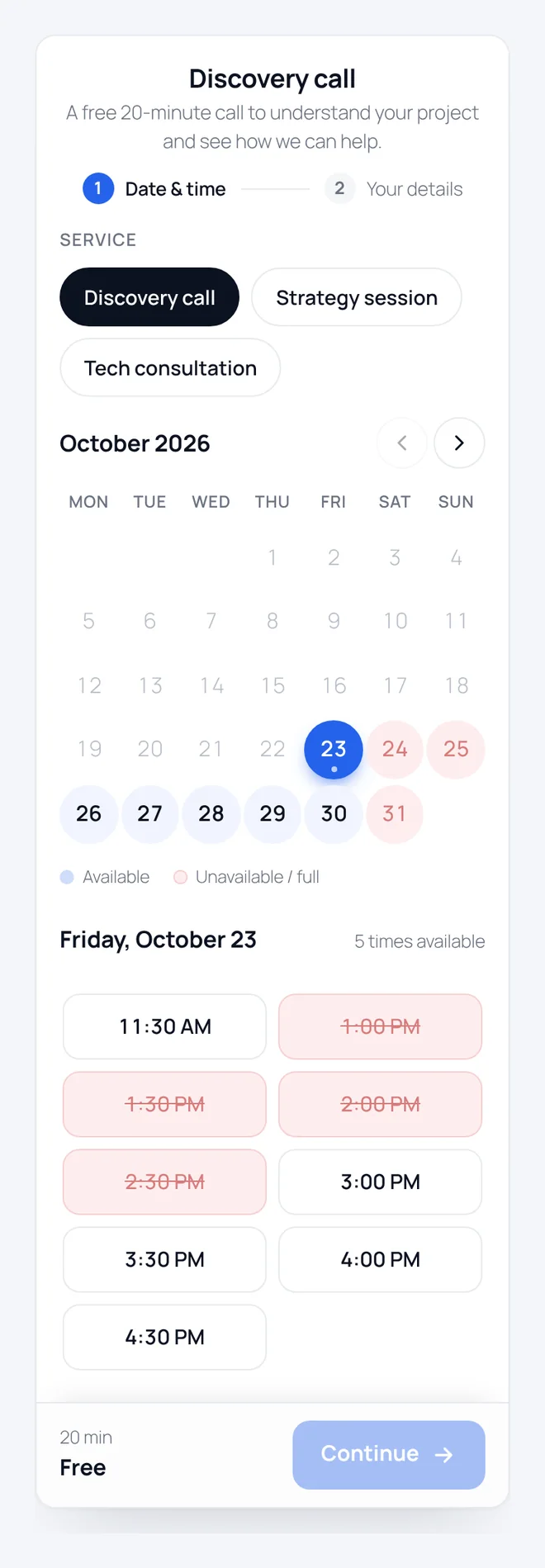
Step 1 — Date & time
The client chooses a service (if you have several), a call length, a day and a free time. Days off, full days and booked times are greyed out.
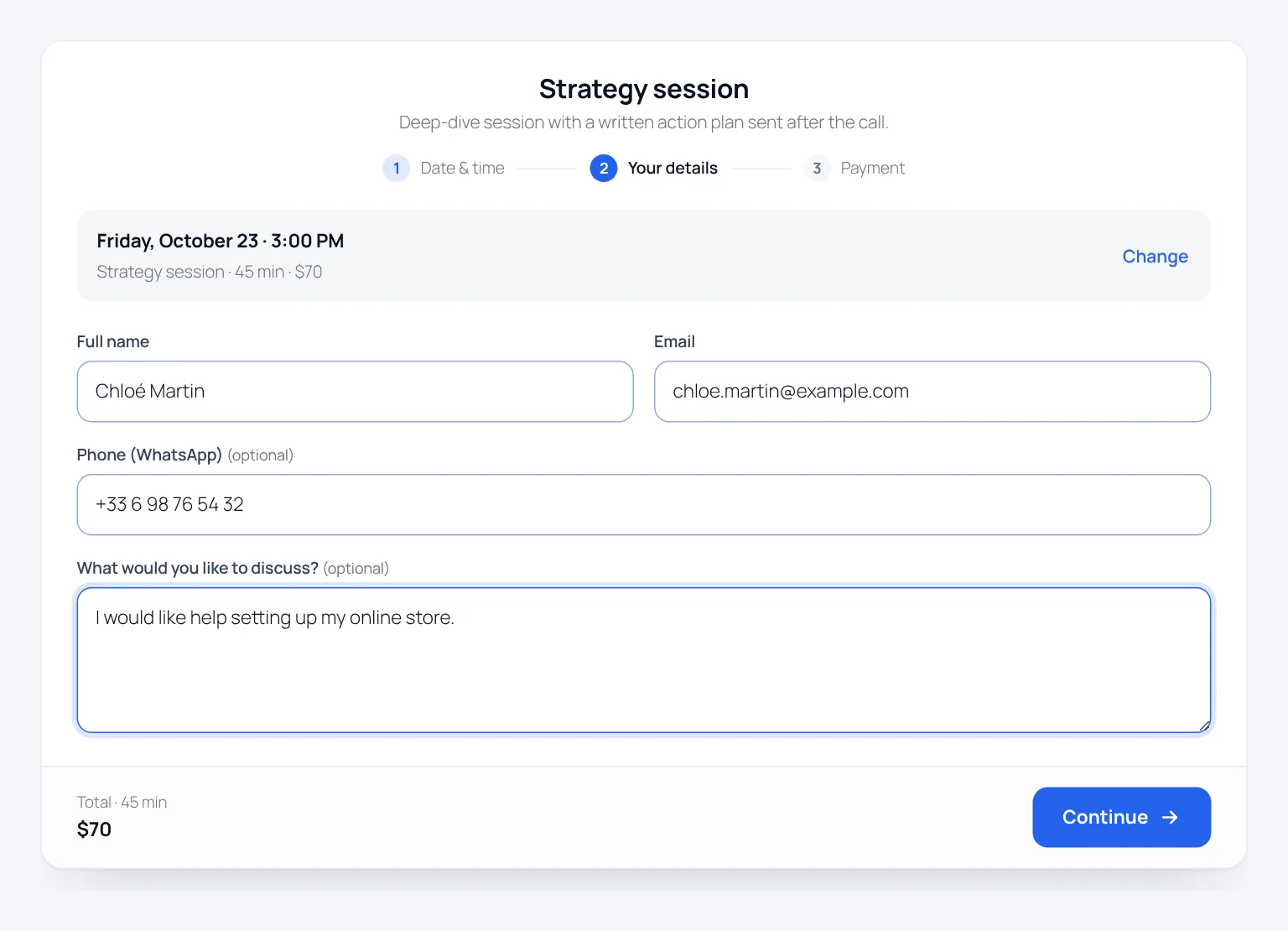
Step 2 — Their details
Name, email, phone (WhatsApp) and an optional message. You decide which fields are shown and required in Settings → Booking form.
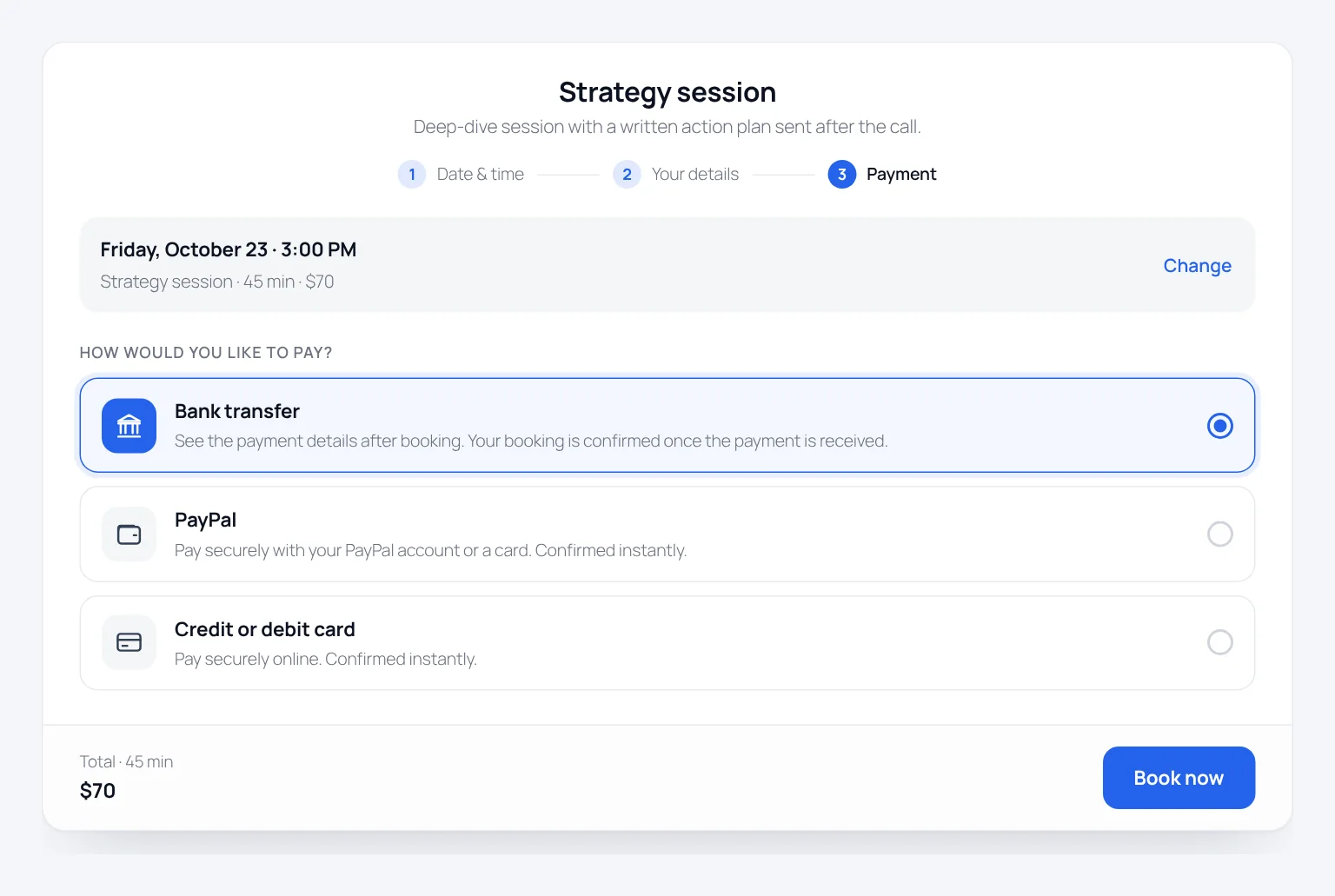
Step 3 — Payment (only when PayPal or WooCommerce is on)
For paid calls, when an online payment method is enabled, a third step lets the client choose how to pay. Free calls skip this step.
After booking
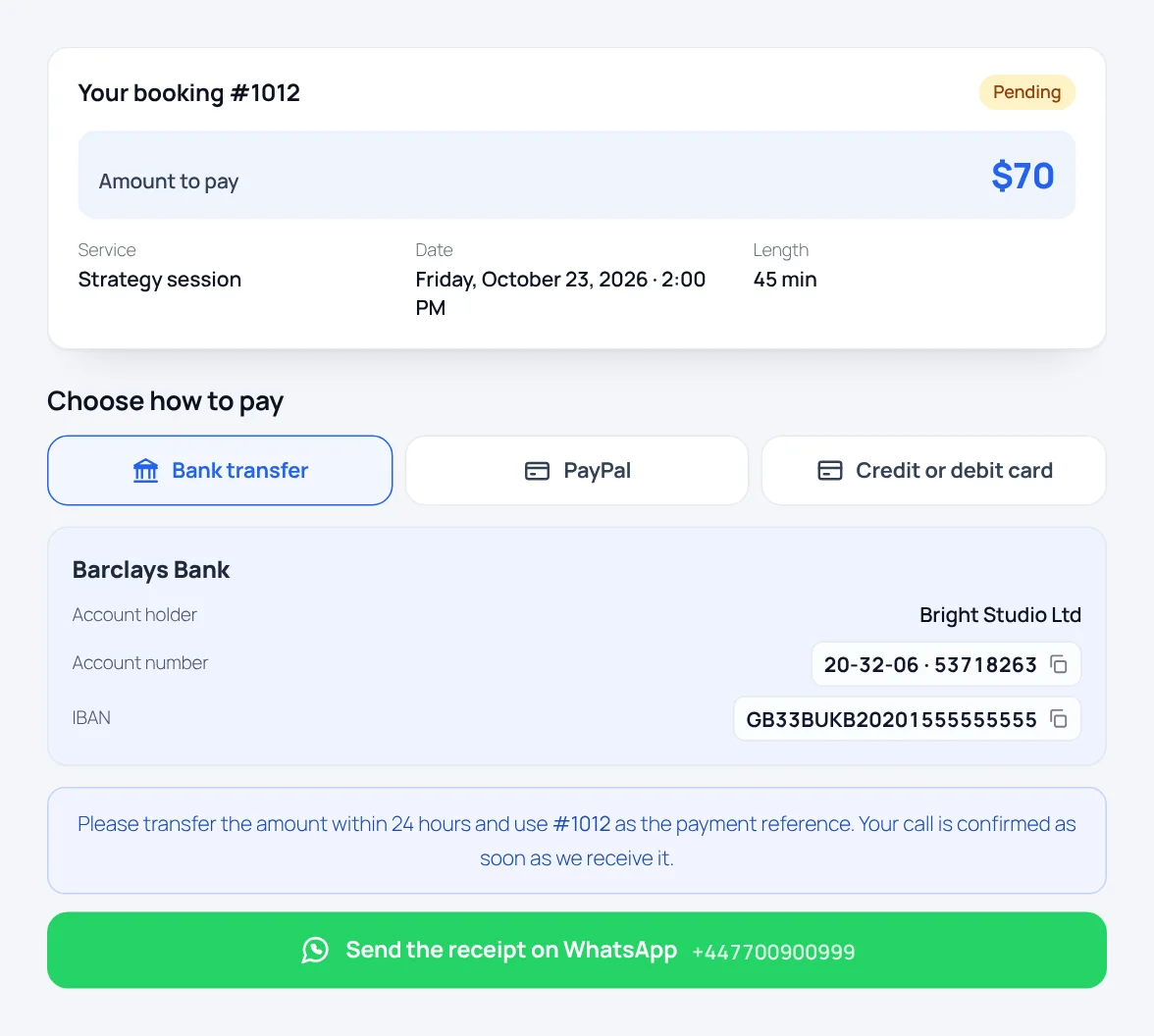
With an online payment the client goes straight to PayPal or the WooCommerce checkout. With on-site payment they land on their private payment page with your bank details and instructions. Either way they receive the “Booking received” email.
The form is fully responsive:
Shortcodes
| Shortcode | What it does |
|---|---|
[midzoom] | The booking form. It follows the language of the page. |
[midzoom service="6"] | Opens the form directly on one service (the ID is shown in Services). |
[midzoom lang="fr"] | Forces a language (code of one of your site languages). |
[midzoom_payment] | Booking summary, payment options and status. It is on the Payment page created automatically — you normally never need to add it yourself. |
[midzoom_booking] is an alias of [midzoom].
Bookings
MidZoom → Bookings is your home screen: counters at the top (waiting for confirmation, upcoming confirmed calls, calls today, revenue this month), then every booking with its client, service, payment, video call and status.
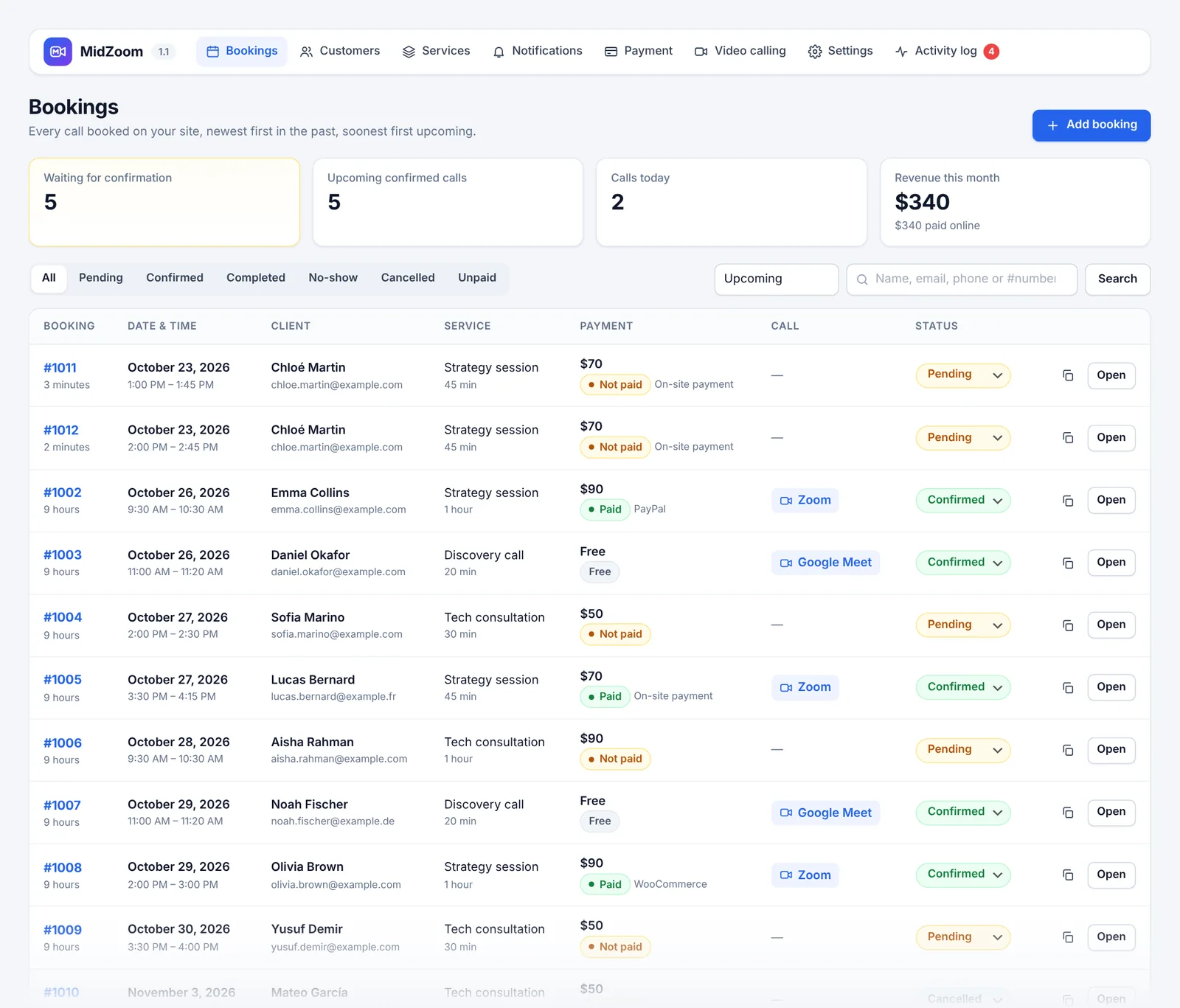
- Filter by status (Pending, Confirmed, Completed, No-show, Cancelled, Unpaid) and by Upcoming / Past / All dates.
- Search by name, email, phone or booking number (
#1024). - Change the status directly in the list with the status menu, or click Open for the full booking.
- The copy icon copies the client’s private page link.
Booking statuses
| Status | Meaning | What MidZoom does |
|---|---|---|
| Pending | Booked, waiting for payment or for your confirmation. | The time is held. “Booking received” is sent. |
| Confirmed | The call will happen. | Creates the Google Meet / Zoom link, sends the confirmation (with calendar file), then the reminder and follow-up automatically. |
| Completed | The call took place. | Nothing more is sent. |
| No-show | The client didn’t come. | Sends the No-show message. |
| Cancelled | The call won’t happen. | Sends the Cancelled message, deletes the Zoom meeting / calendar event and frees the time. |
Booking details
Click Open on any booking to see and manage everything about it.
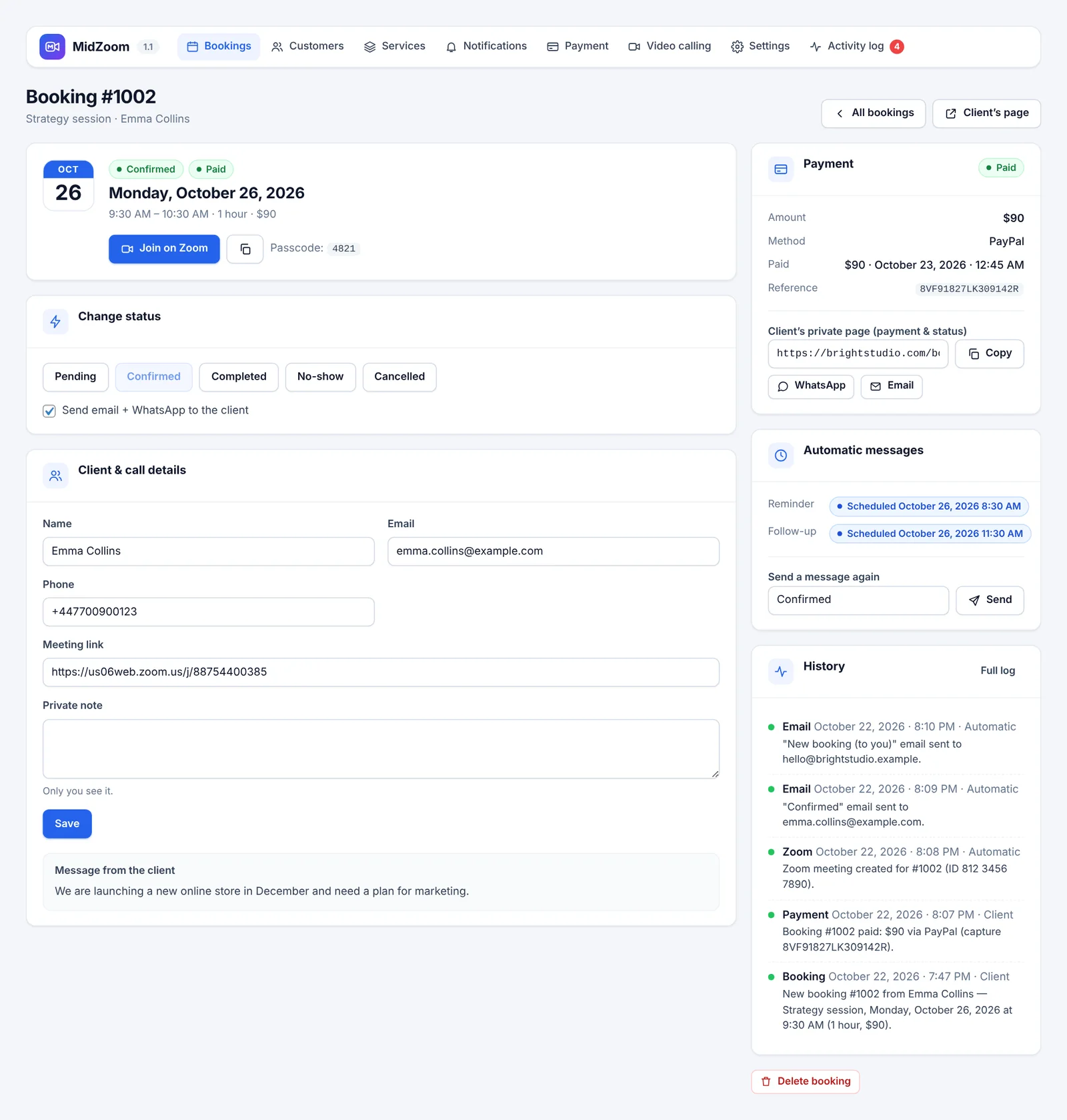
- Join button, meeting link and passcode (copy them in one click).
- Change status — tick or untick Send email + WhatsApp to the client to decide whether the client is notified.
- Client & call details — edit the name, email, phone or meeting link, and keep a private note only you can see.
- Payment — amount, method, date and reference. For unpaid bookings you can mark them as paid.
- Client’s private page — copy the link or send it by WhatsApp or email. Clients use it to pay and to see their booking status.
- Automatic messages — when the reminder and the follow-up are scheduled, and Send a message again to resend any message.
- History — everything that happened to this booking (payment, emails, meeting links, status changes).
- Delete booking — removes it for good (use Cancelled if you want to keep a trace).
Add a booking manually
For a call booked by phone, message or in person: Bookings → Add booking. It uses the same numbers, meeting links and messages as online bookings.
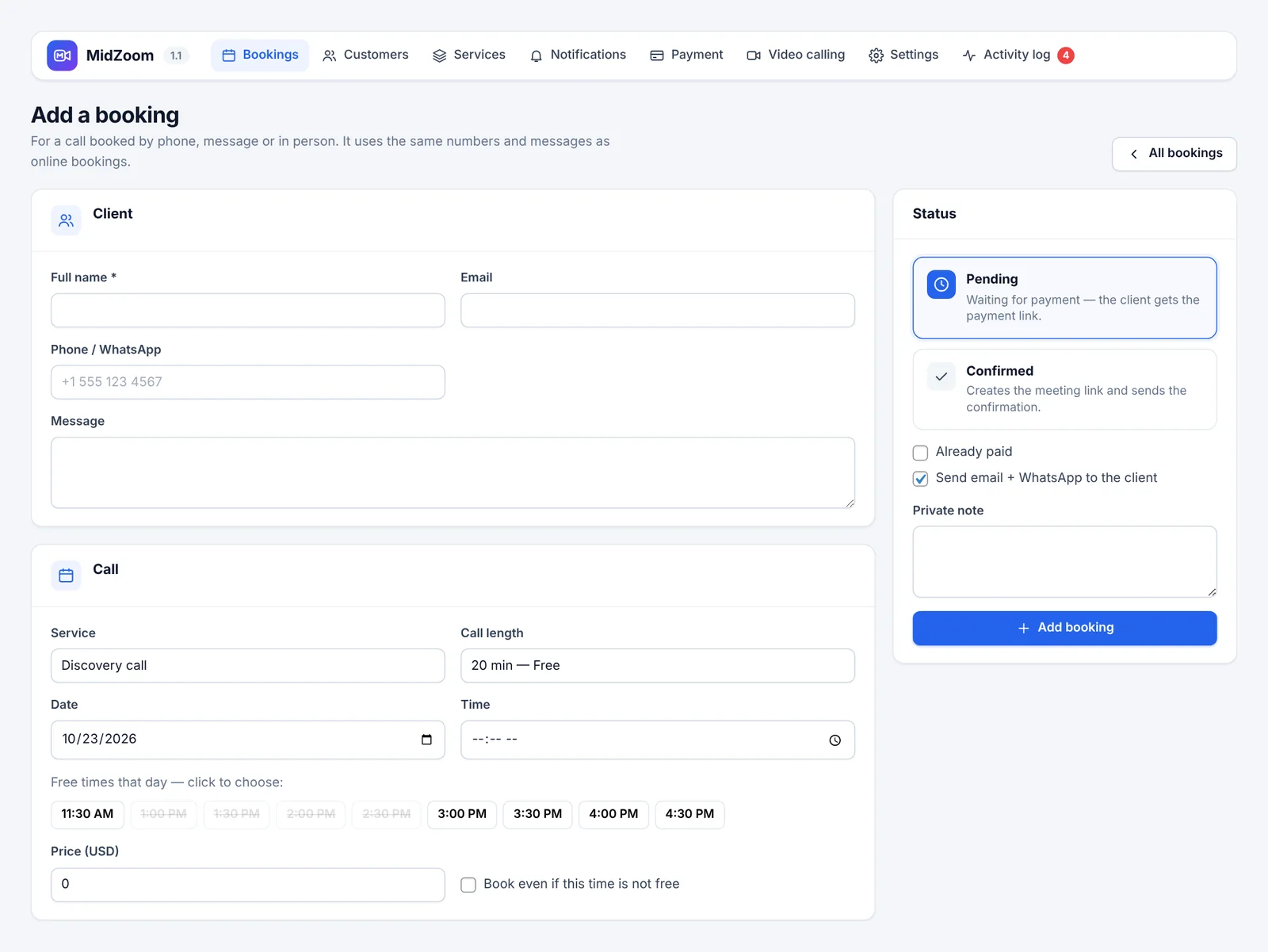
- Pick the service, call length, date and one of the free times (or tick Book even if this time is not free).
- You can change the price for this booking.
- Pending sends the payment link; Confirmed creates the meeting link and sends the confirmation. Tick Already paid if the client paid you already.
- Untick Send email + WhatsApp to the client to add it silently.
Tip: in Customers, the Book button opens this form already filled with that client’s details.
Customers
MidZoom → Customers lists everyone who booked, built automatically from your bookings: the same email or phone number is the same customer.
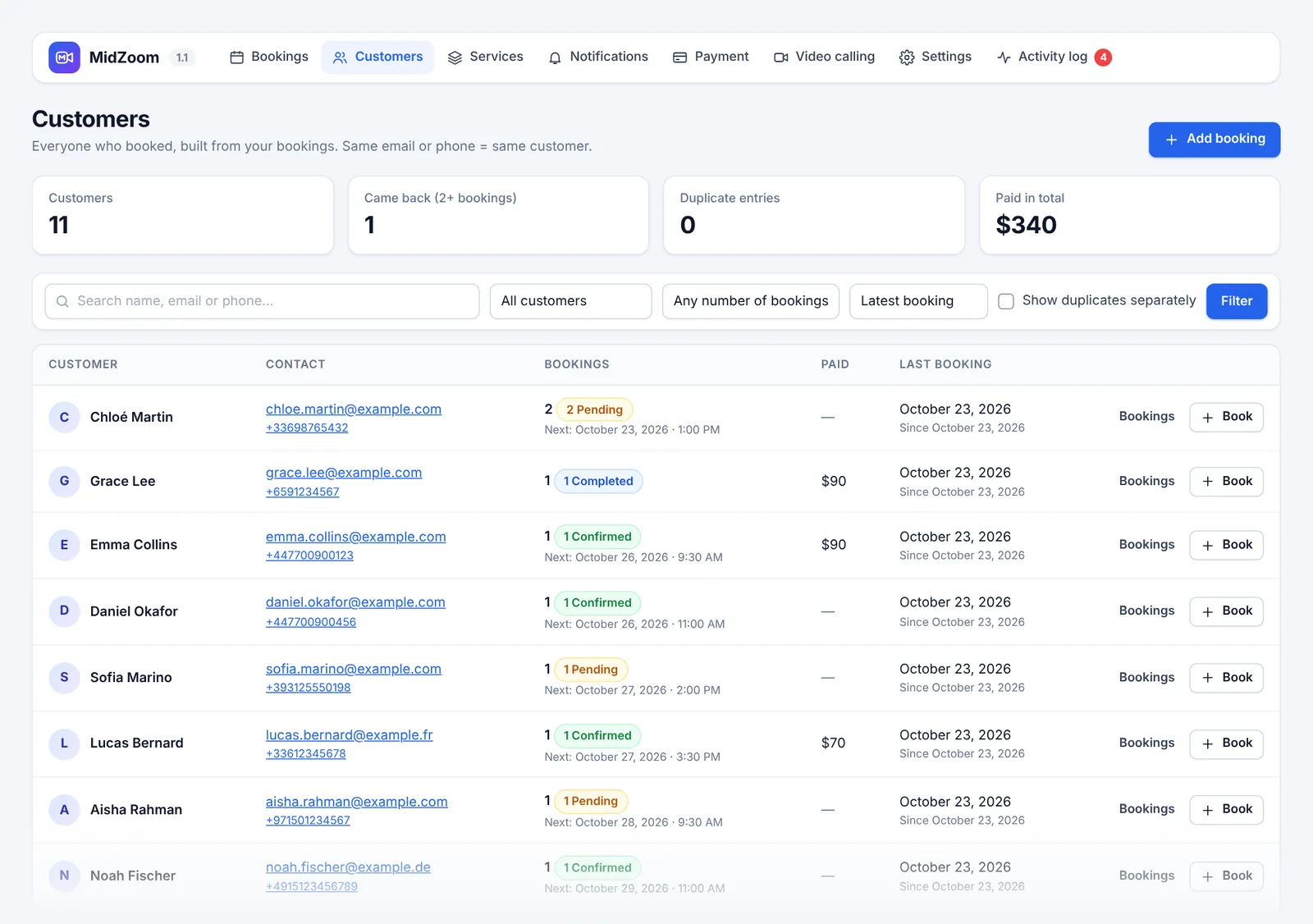
- See each customer’s bookings, total paid, last booking and next call.
- Filter (with an upcoming call, paid at least once, only unpaid, had a no-show or a cancellation, duplicates) and sort (latest, oldest, A→Z, most bookings, most paid).
- Bookings shows all bookings of that customer; Book starts a new booking for them.
- Export these customers (CSV) downloads the current list for Excel, Google Sheets or your newsletter tool.
Services
MidZoom → Services is where you decide what clients can book.
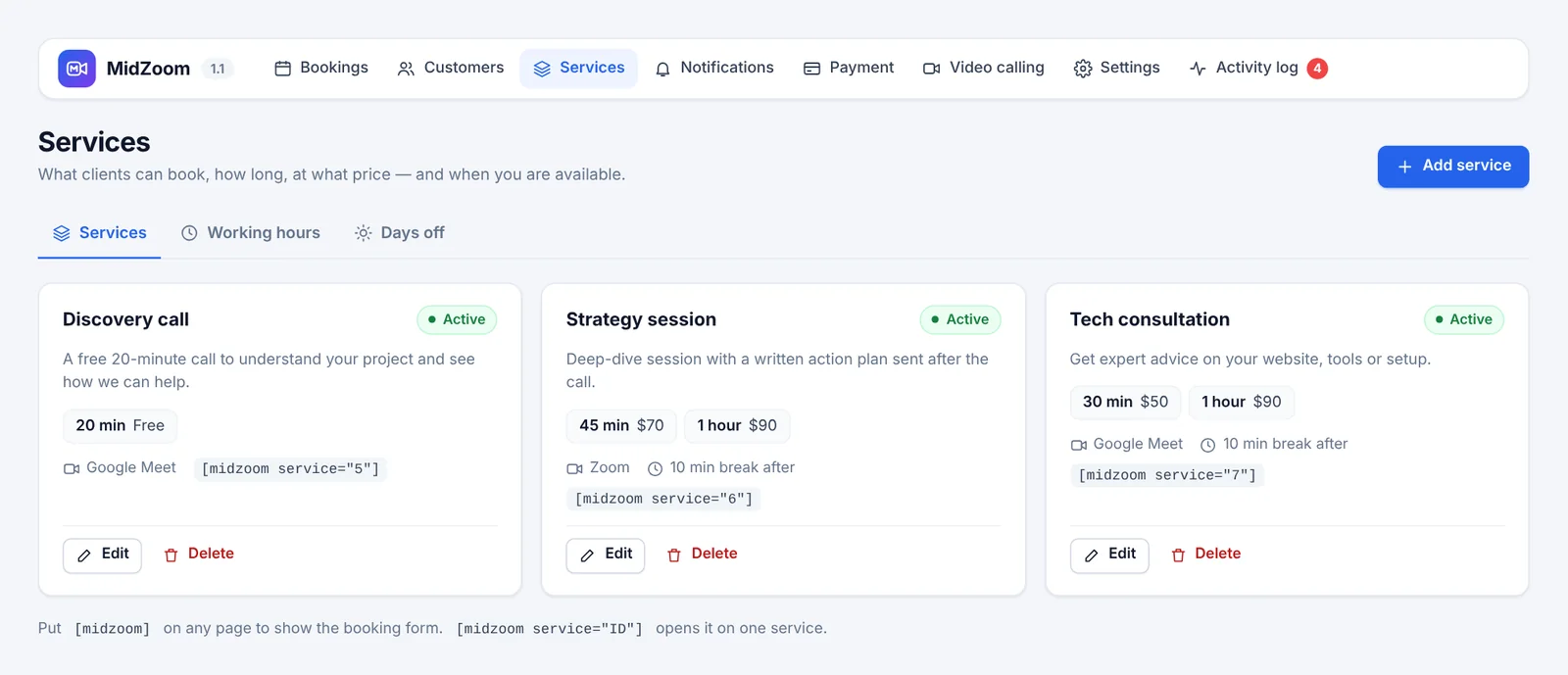
Create or edit a service
Click Add service or Edit.
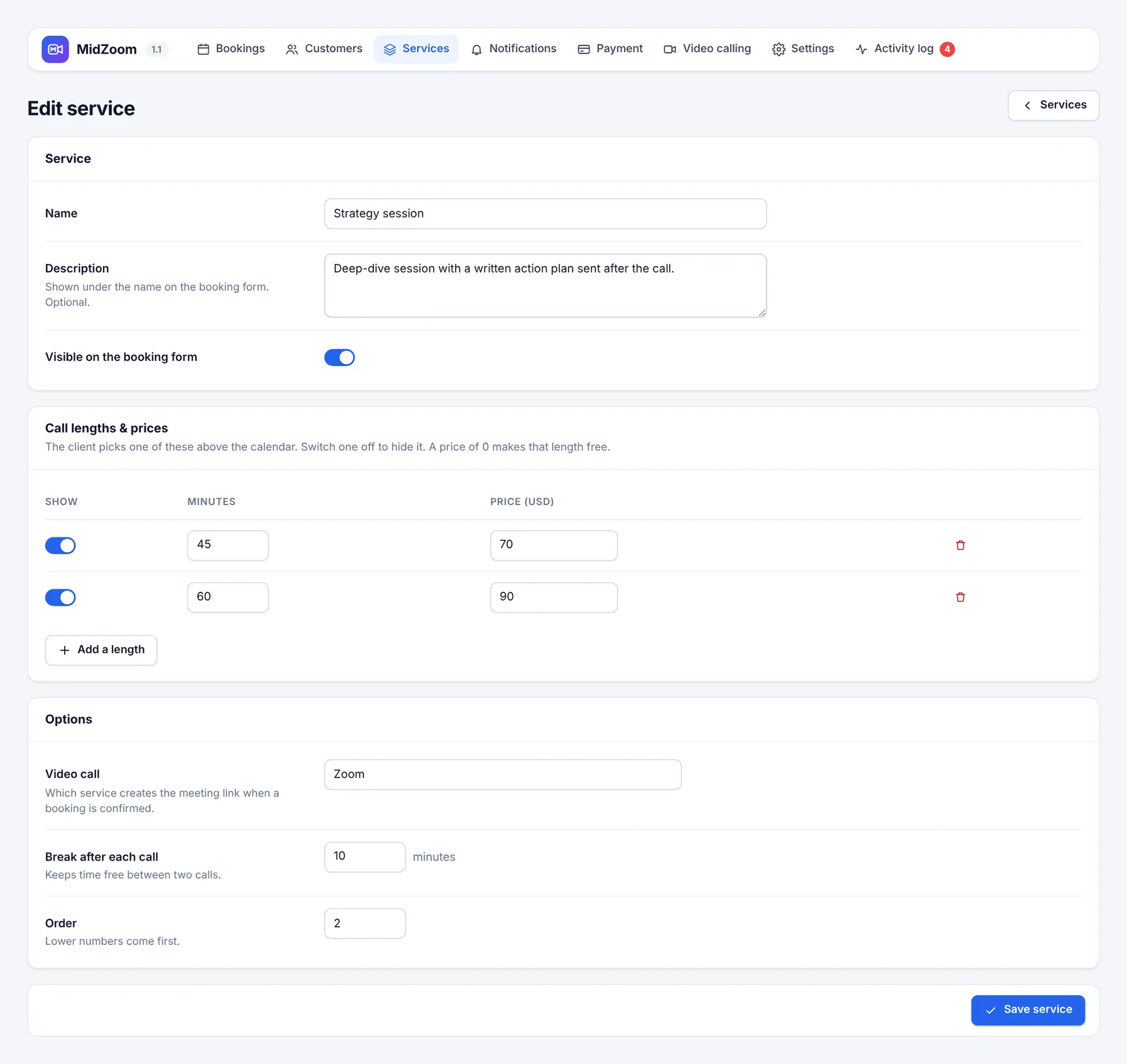
- Name and Description — shown on the booking form.
- Visible on the booking form — switch off to hide a service without deleting it.
- Call lengths & prices — add one or several lengths (for example 45 min at $70 and 1 hour at $90). The client picks one. A price of 0 makes that length free.
- Video call — the service that creates the meeting link: the default one, Google Meet, Zoom, or no automatic link.
- Break after each call — keeps free time after each call (for notes or a coffee).
- Order — lower numbers come first on the form.
Working hours & booking rules
Services → Working hours.
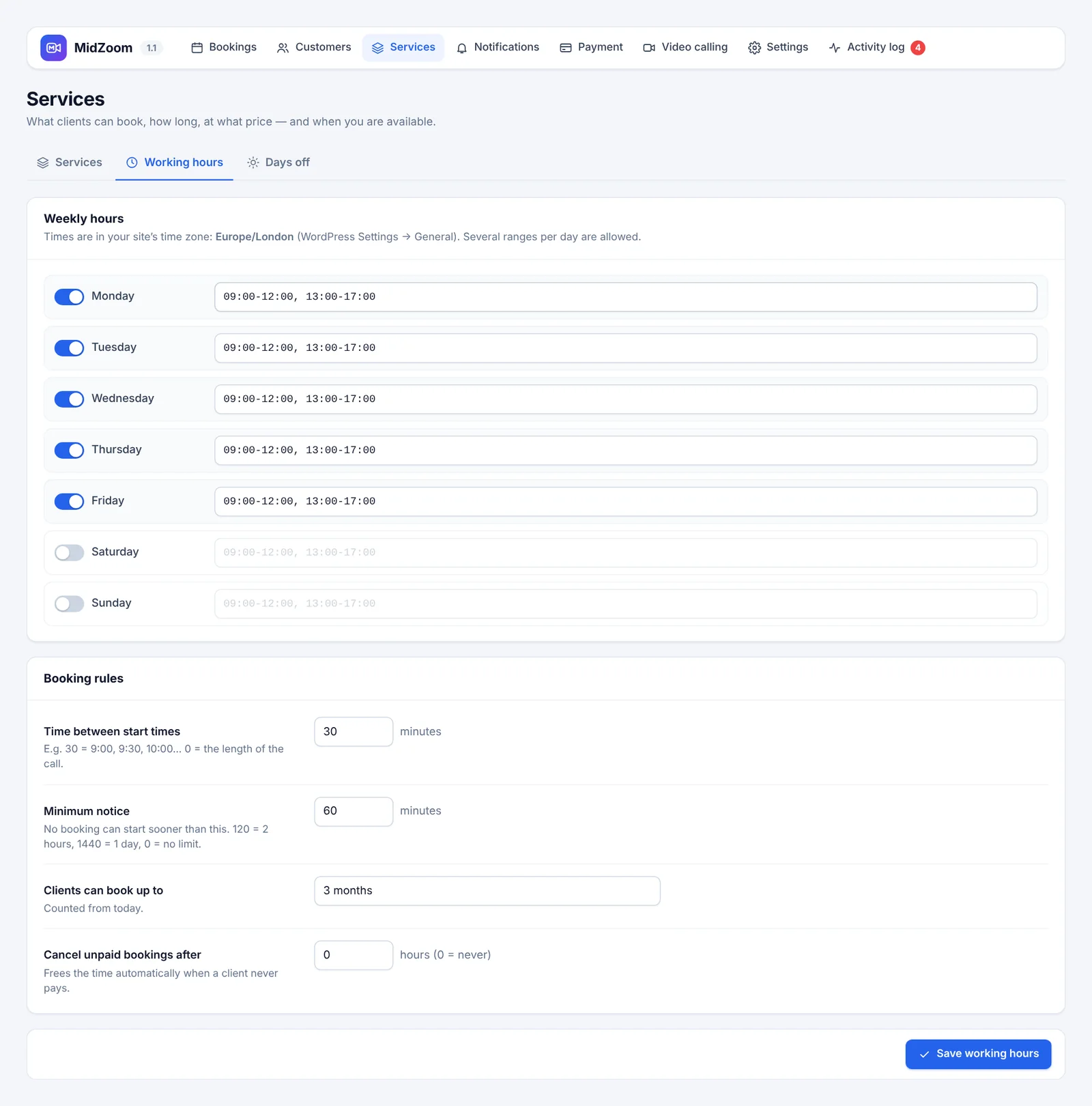
Weekly hours
Switch each day on or off and write one or more time ranges, for example 09:00-12:00, 13:00-17:00. Times are in your site’s time zone (WordPress Settings → General).
Booking rules
- Time between start times — 30 gives 9:00, 9:30, 10:00… 0 uses the length of the call.
- Minimum notice — no booking can start sooner than this (120 = 2 hours, 1440 = 1 day).
- Clients can book up to — how far ahead (1 week to 24 months).
- Cancel unpaid bookings after — frees the time automatically when a client never pays (0 = never).
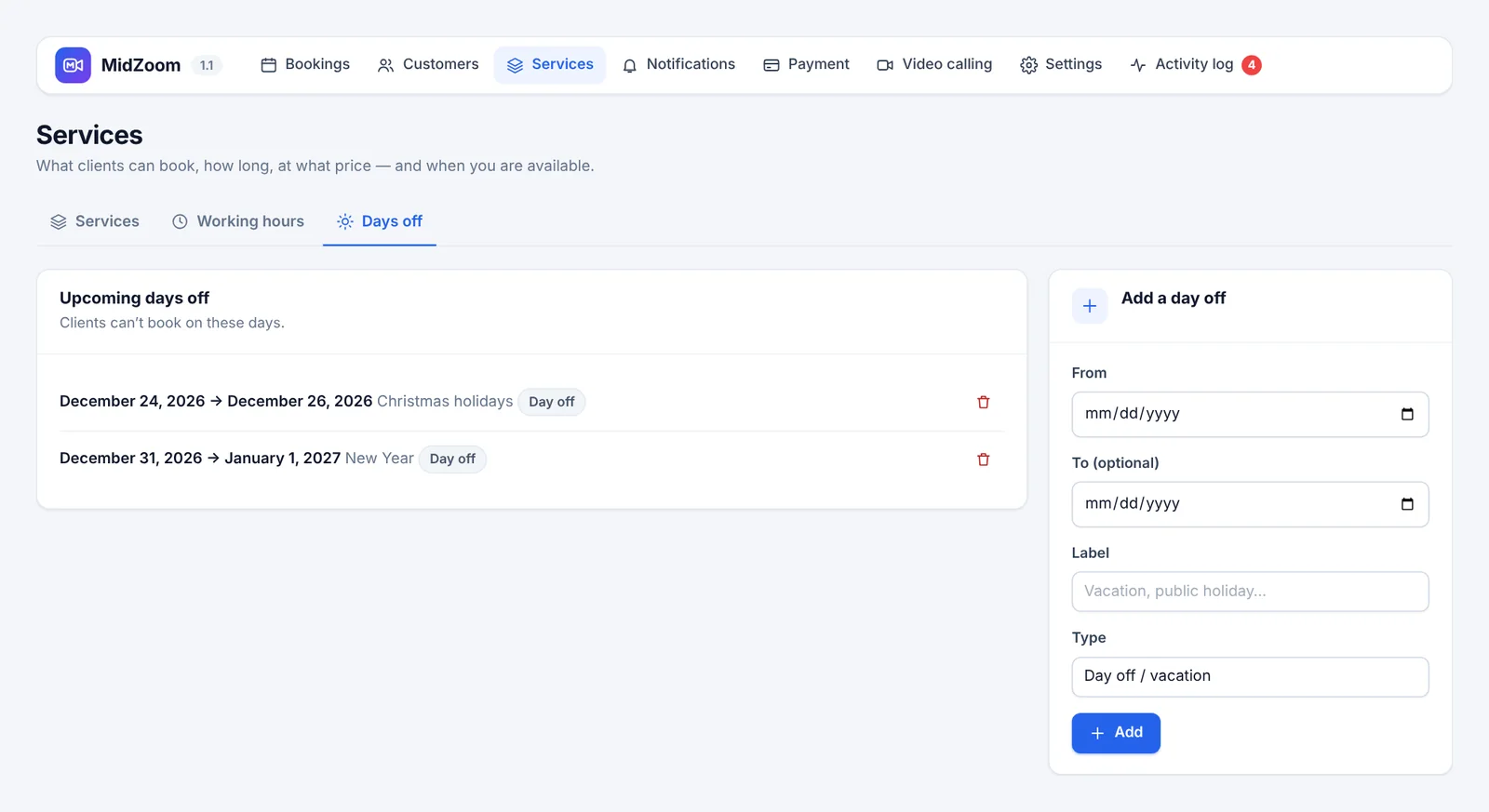
Days off & holidays
Services → Days off: add a single day or a period (From / To), a label and the type (Day off / vacation or Public holiday). Clients can’t book on these days.
Messages & templates
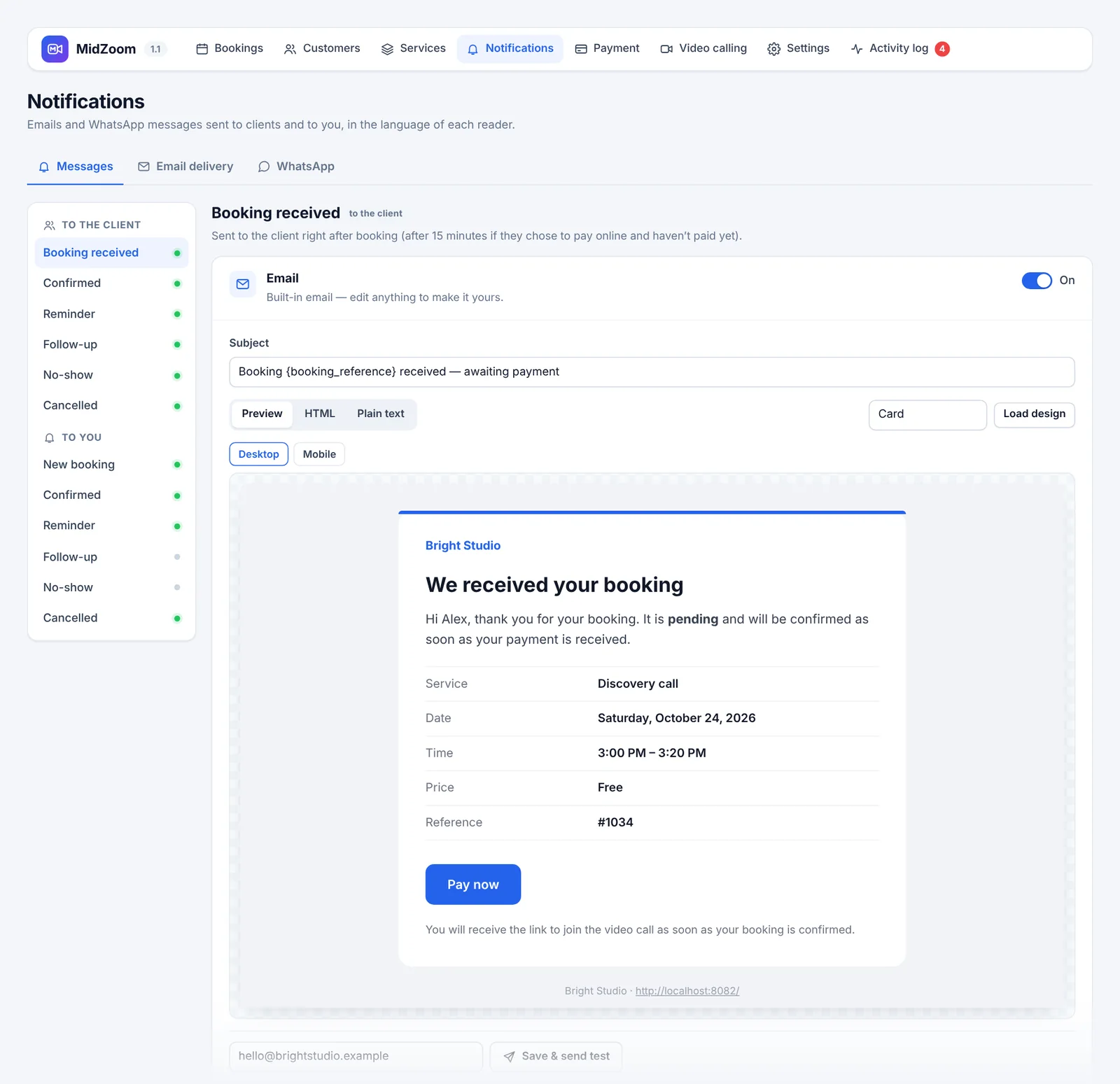
MidZoom → Notifications → Messages. Every message exists in two versions: to the client and to you.
| Message | When it is sent |
|---|---|
| Booking received | Right after booking (after 15 minutes if the client chose to pay online and hasn’t paid yet). |
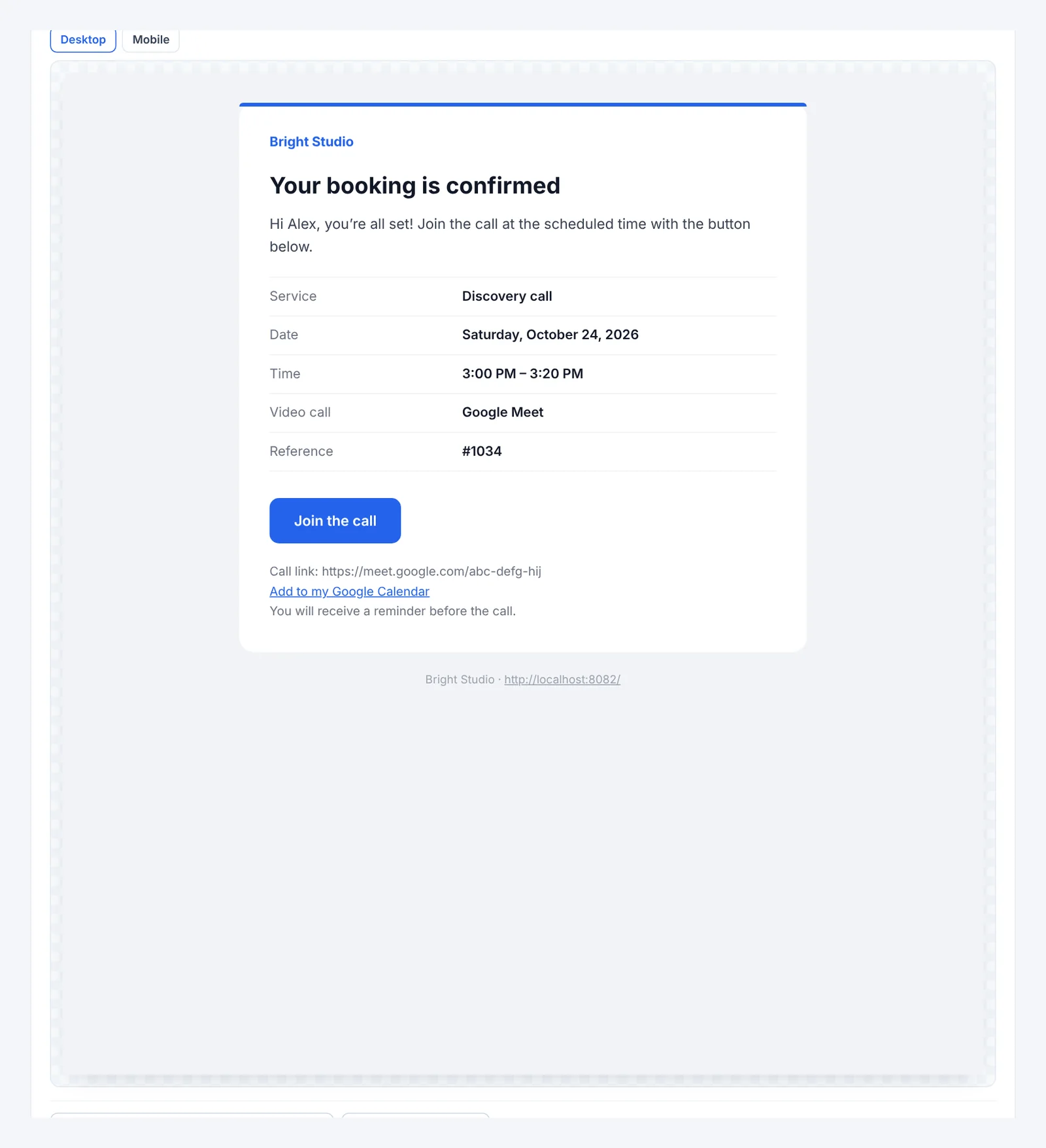
| Confirmed | When the booking is confirmed — by you, or automatically after an online payment. Contains the meeting link and a calendar file. |
| Reminder | Before the call, confirmed bookings only. Choose how many minutes before. |
| Follow-up | After the call, confirmed bookings only — perfect to ask for a review ({review_link}). |
| No-show | When you mark the booking as No-show. |
| Cancelled | When the booking is cancelled (by you, or automatically when unpaid). |
The messages “to you” are sent to Your email / Your WhatsApp from Settings → General. They are not sent for changes you make yourself in the admin. “Follow-up” and “No-show” to you are off by default.
Editing an email
- Switch the email On or off, change the Subject.
- Preview shows the real email (Desktop / Mobile). HTML lets you edit the design; Plain text is the version for email apps without HTML.
- Load design applies one of three ready-made designs: Card, Minimal or Bold header.
- Insert placeholders such as
{client_first_name}or{meeting_link}by clicking them in the list. - Save & send test sends the email to any address so you can check it in your inbox.
With WPML or Polylang, a language selector appears: each client receives the message in the language they booked in, and you can edit each language separately.
Placeholders
Placeholders are replaced with the real booking data in emails, WhatsApp messages, payment instructions, the external payment link and Zoom / Google event titles.
| Placeholder | Becomes |
|---|---|
| Booking | |
{booking_id} | Booking number, e.g. 1024 |
{booking_reference} | Booking number with #, e.g. #1024 |
{booking_date} | Long date, e.g. Tuesday, October 20, 2026 |
{booking_date_short} | Short date (WordPress date format) |
{booking_day} | Weekday, e.g. Tuesday |
{booking_time} · {booking_end_time} | Start and end time |
{booking_duration} | Call length, e.g. 30 min / 1 hour |
{booking_status} | Status in the client’s language |
{booking_price} · {booking_price_amount} · {booking_currency} | Price with currency ($90), number only (90), currency code (USD) |
{booking_created_at} · {booking_timezone} | When the client booked · time zone of the times |
| Client | |
{client_name} · {client_first_name} · {client_last_name} | Full, first and last name |
{client_email} · {client_phone} | Email · phone in international format |
{client_whatsapp_link} | wa.me link to chat with the client |
{client_description} | Message written on the booking form |
{client_language} | Language the client booked in |
| Service | |
{service_name} · {service_description} | In the client’s language |
| Video call | |
{meeting_link} | Link to join (Google Meet, Zoom or your backup link) |
{meeting_provider} · {meeting_id} · {meeting_passcode} | Google Meet / Zoom · meeting ID · Zoom passcode |
{add_to_calendar_link} | “Add to Google Calendar” link for the client |
| Payment | |
{payment_link} | Private payment page of this booking |
{payment_method} · {payment_status} | Method chosen · Paid / Not paid |
| Links & contact | |
{booking_page_url} | Your booking page |
{review_link} | Review link (Settings → General), or your WhatsApp if empty |
{admin_link} | This booking in wp-admin — only in messages to you |
{contact_email} · {contact_phone} · {contact_whatsapp_link} | Your public contact details |
| Your business & branding | |
{business_name} · {site_name} · {site_url} | Business name, website name and address |
{admin_email} · {admin_phone} | Your email / phone (clients get the public contact instead) |
{today} · {year} | Today’s date · current year |
{brand_color} · {brand_text} | Theme colour and the readable text colour on it |
{logo} · {logo_url} | Your email logo (added automatically at the top) · its address |
Email delivery (SMTP)
By default WordPress sends emails from your server, and they often land in spam. Sending through a real mailbox fixes that: Notifications → Email delivery.
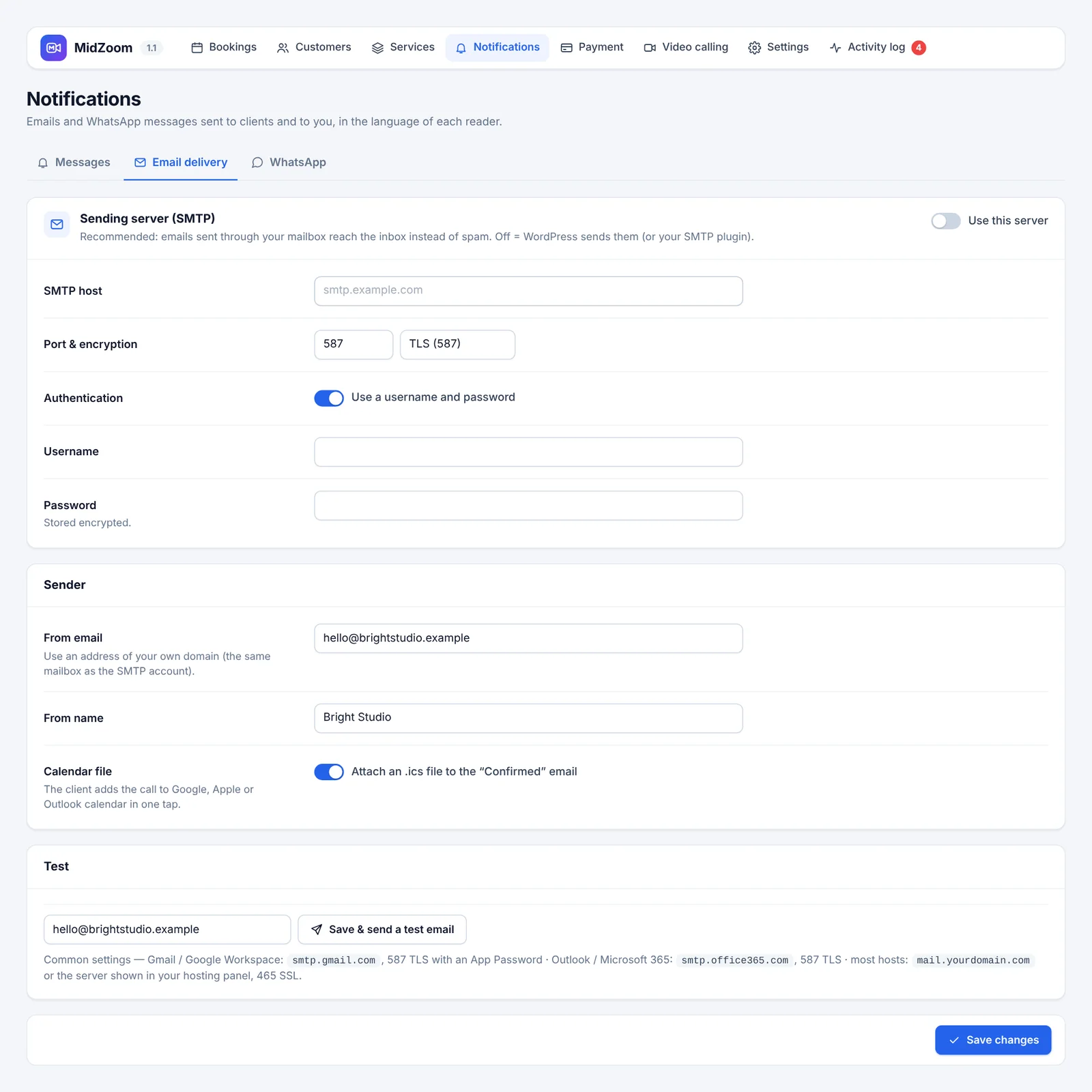
- Switch on Use this server.
- Fill in the SMTP host, port & encryption, and your mailbox username and password (stored encrypted).
- Set the From email to an address of your own domain — the same mailbox as the SMTP account — and a From name.
- Click Save & send a test email and check your inbox.
| Provider | Host | Port |
|---|---|---|
| Gmail / Google Workspace | smtp.gmail.com | 587 TLS, with an App Password |
| Outlook / Microsoft 365 | smtp.office365.com | 587 TLS |
| Most hosts (Hostinger, cPanel…) | mail.yourdomain.com or the server shown in your hosting panel | 465 SSL |
Already using an SMTP plugin (WP Mail SMTP, FluentSMTP…)? Leave Use this server off: MidZoom then sends through it.
Calendar file: keep Attach an .ics file to the “Confirmed” email on, so clients add the call to Google, Apple or Outlook calendar in one tap.
WhatsApp messages
MidZoom can send each message on WhatsApp too, from your WhatsApp Business number, using the official Meta Cloud API. This is optional and needs a Meta Business account.
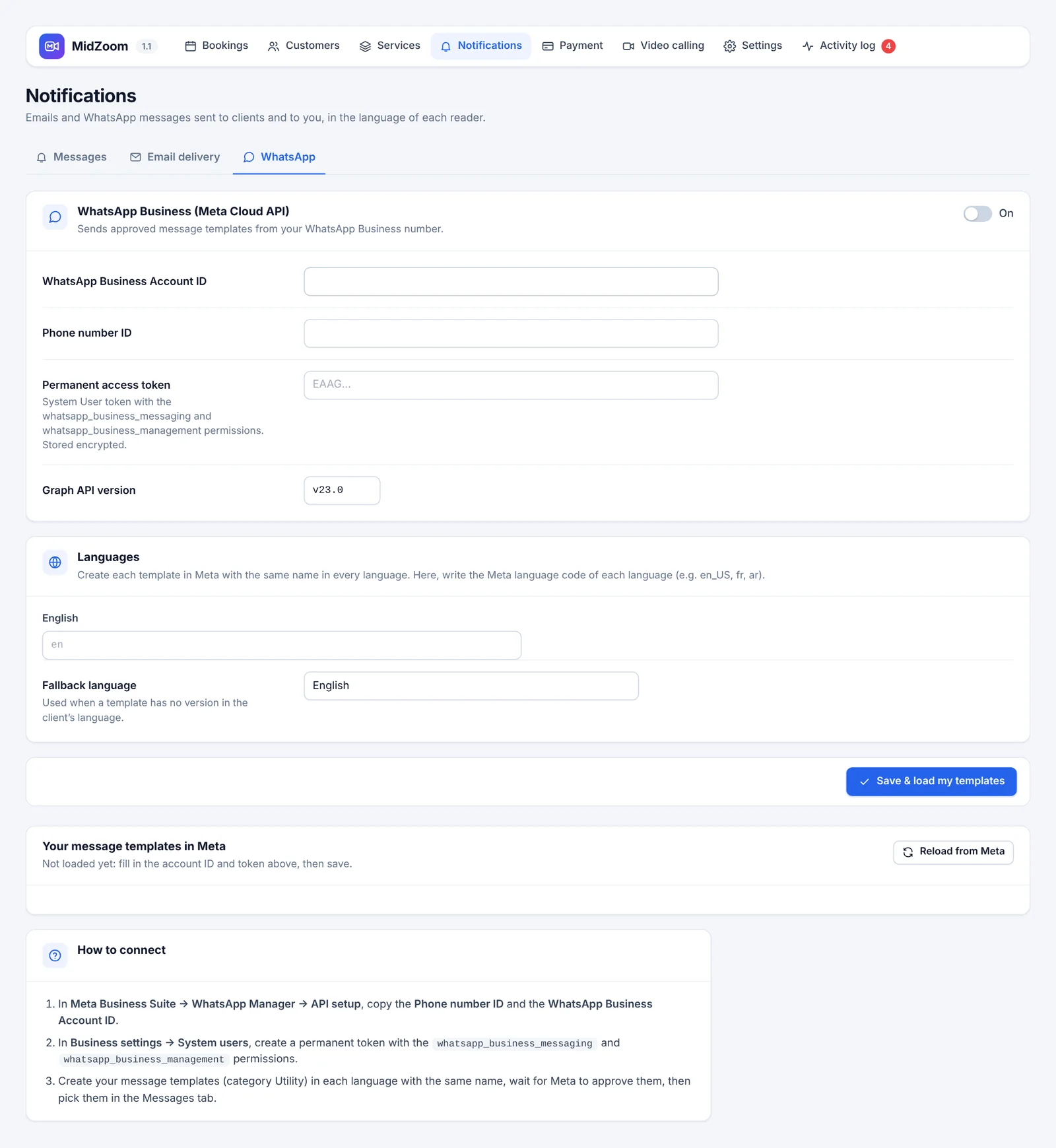
- In Meta Business Suite → WhatsApp Manager → API setup, copy the Phone number ID and the WhatsApp Business Account ID.
- In Business settings → System users, create a permanent token with the
whatsapp_business_messagingandwhatsapp_business_managementpermissions. - Paste the three values in Notifications → WhatsApp, switch it On and click Save & load my templates.
- In Meta, create your message templates (category Utility) with the same name in each language and wait for approval. MidZoom shows a suggested text for each message.
- In Notifications → Messages, pick the template for each message and list its variables in order, e.g.
{client_first_name},{booking_date},{meeting_link}. Click Save & send test.
Languages: write the Meta language code for each site language (en_US, fr, ar…) and choose a fallback language. Each client gets the template in their language.
Payment methods
MidZoom → Payment → Methods shows the three methods, which ones are ready, and the currency.
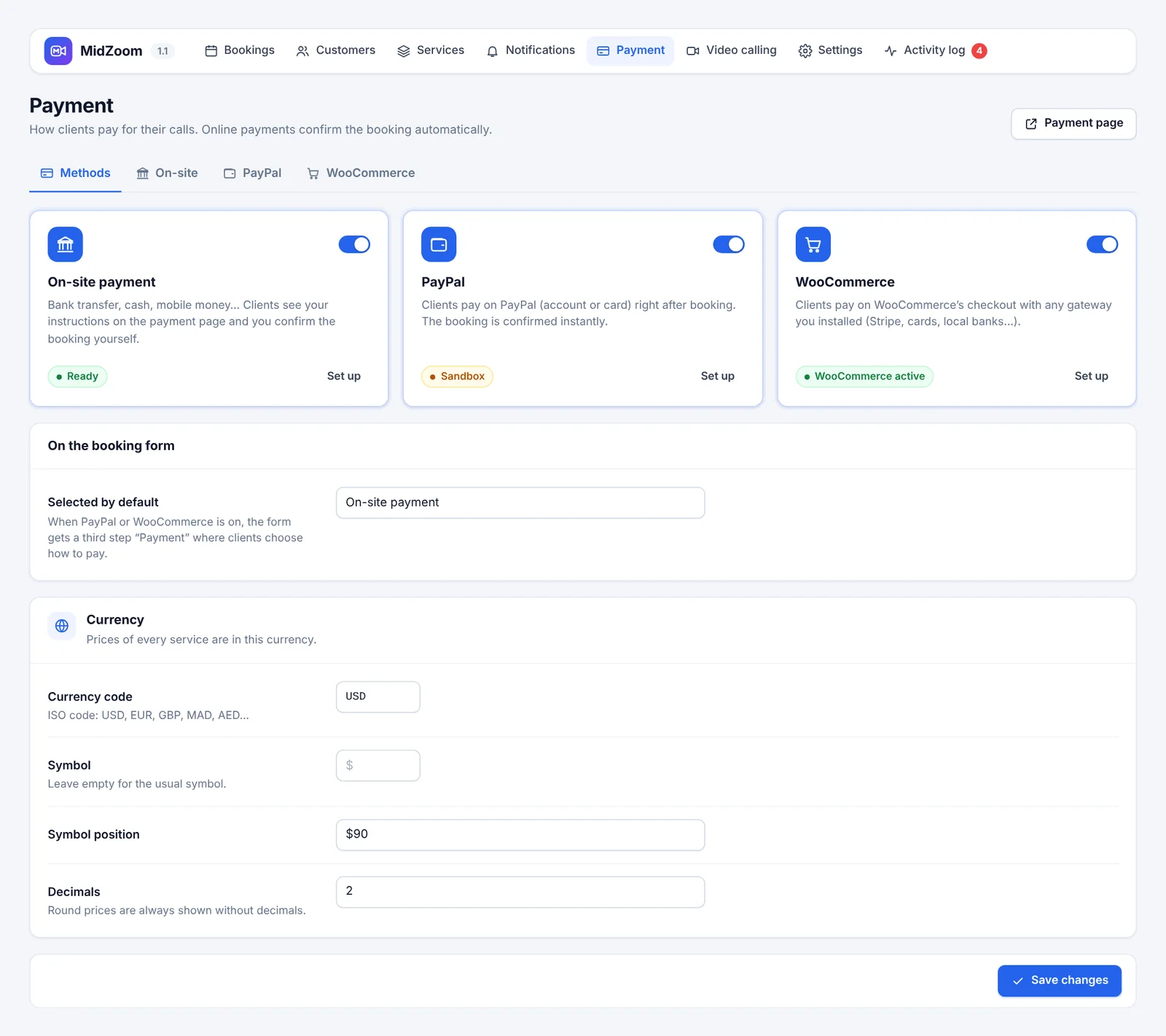
- On-site payment — bank transfer, cash, mobile money… Clients see your instructions and you confirm the booking yourself.
- PayPal — clients pay with their PayPal account or a card right after booking. Confirmed instantly.
- WooCommerce — clients pay on the WooCommerce checkout with any gateway you installed (Stripe, cards, local banks…). Confirmed instantly.
When PayPal or WooCommerce is on, the form gets the third step “Payment”. Selected by default chooses which method is pre-selected there.
Currency
Set the ISO currency code (USD, EUR, GBP, MAD, AED…), an optional symbol, its position and the decimals. Round prices are always shown without decimals.
On-site payment / bank transfer
Payment → On-site. Choose where clients go after booking:
- Payment page of this site — booking summary and your instructions (recommended).
- External payment link — your own payment provider; placeholders allowed, e.g.
https://pay.example.com/?ref={booking_id}&amount={booking_price_amount}. - Stay on the form — just a thank-you message.
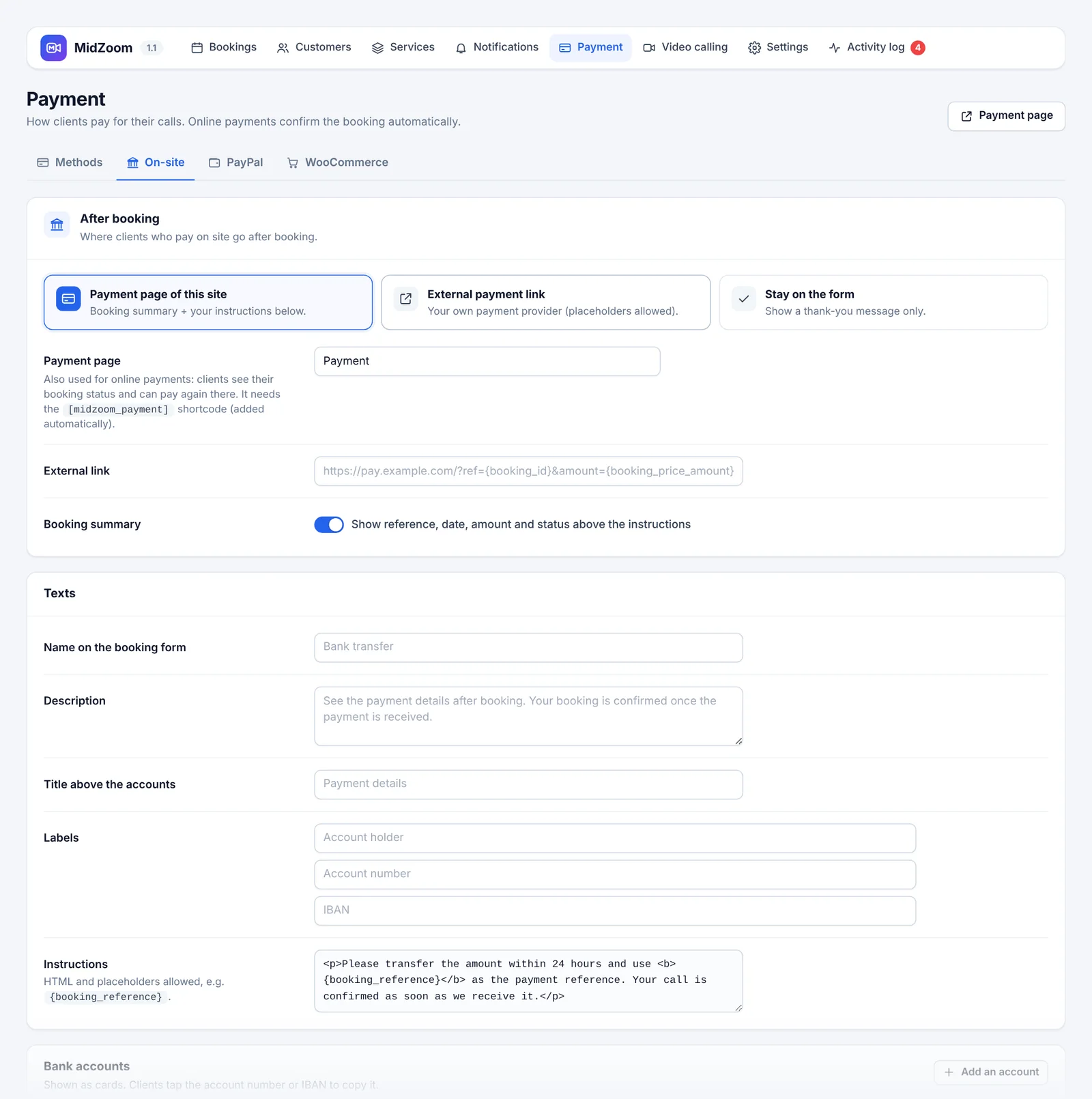
- Texts — the method’s name and description on the form (e.g. “Bank transfer”), the title and labels of your accounts.
- Instructions — HTML and placeholders allowed, e.g. “Use
{booking_reference}as the payment reference”. - Bank accounts — shown as cards; clients tap the account number or IBAN to copy it.
- WhatsApp button — lets the client send you the payment receipt with a pre-written message.
- Custom layout (advanced) — replace the whole section with your own HTML using the blocks
{payment_title}{payment_methods}{payment_instructions}{whatsapp_button}.
When the money arrives, open the booking and set it to Confirmed (and mark it paid).
PayPal
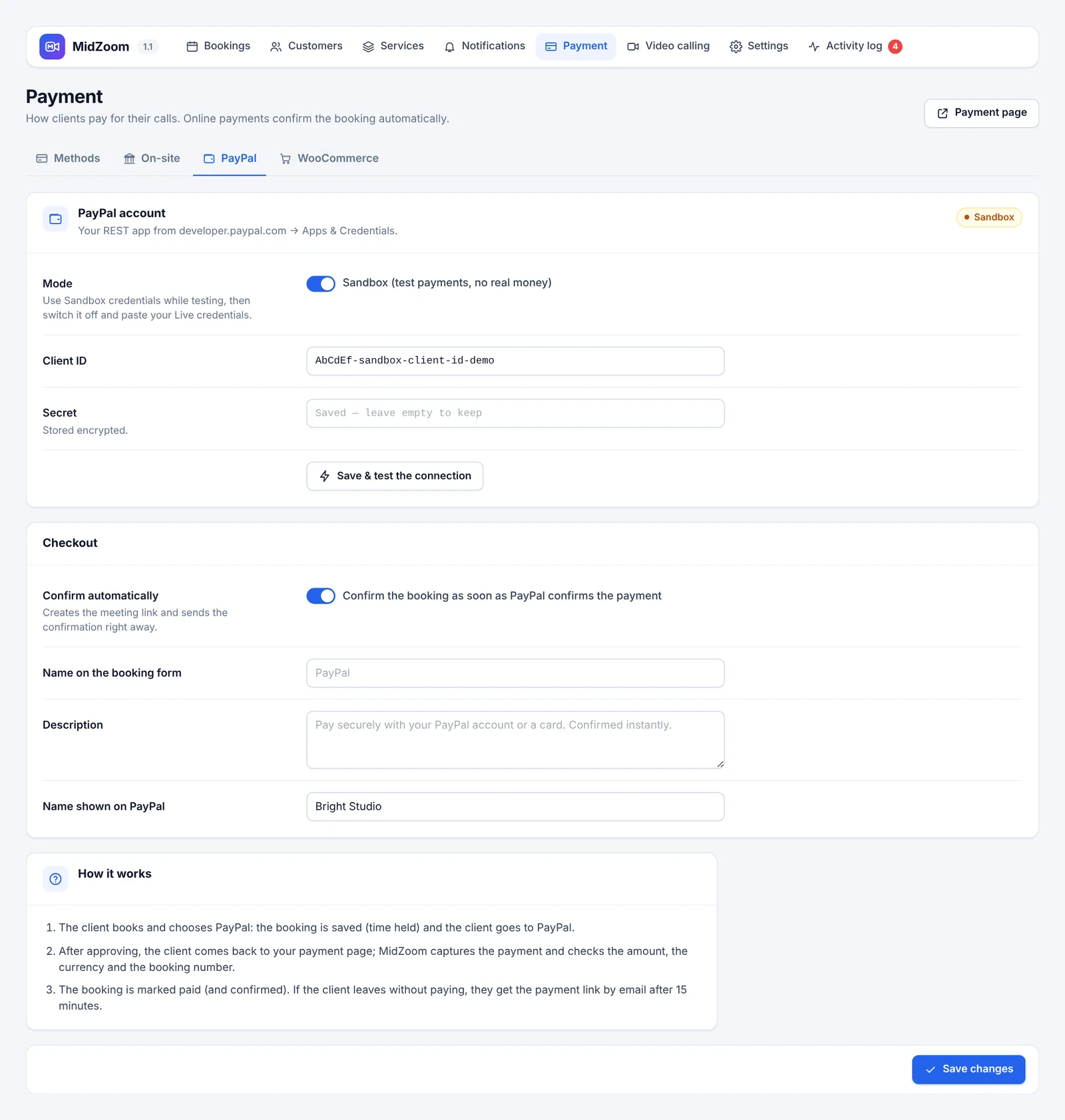
- Log in to developer.paypal.com with your PayPal Business account → Apps & Credentials → Create App.
- For testing, stay on Sandbox: copy the Client ID and Secret, and in MidZoom tick Sandbox.
- Click Save & test the connection, then switch PayPal On.
- Make a test booking and pay with a sandbox buyer account (Developer dashboard → Testing tools → Sandbox accounts).
- Ready to go live: switch to Live in the developer dashboard, create a Live app, paste the Live Client ID and Secret, and untick Sandbox.
How it works
- The client books and chooses PayPal: the booking is saved (the time is held) and the client goes to PayPal.
- After approving, they come back to your payment page; MidZoom captures the payment and checks the amount, currency and booking number.
- The booking is marked paid and confirmed. If the client leaves without paying, they get the payment link by email after 15 minutes.
Confirm automatically (on by default) creates the meeting link and sends the confirmation right away. Name shown on PayPal is your business name on the PayPal page.
WooCommerce payments
Use any payment gateway you have in WooCommerce — Stripe, cards, Apple Pay, local banks… No product is needed: MidZoom creates the order for you.
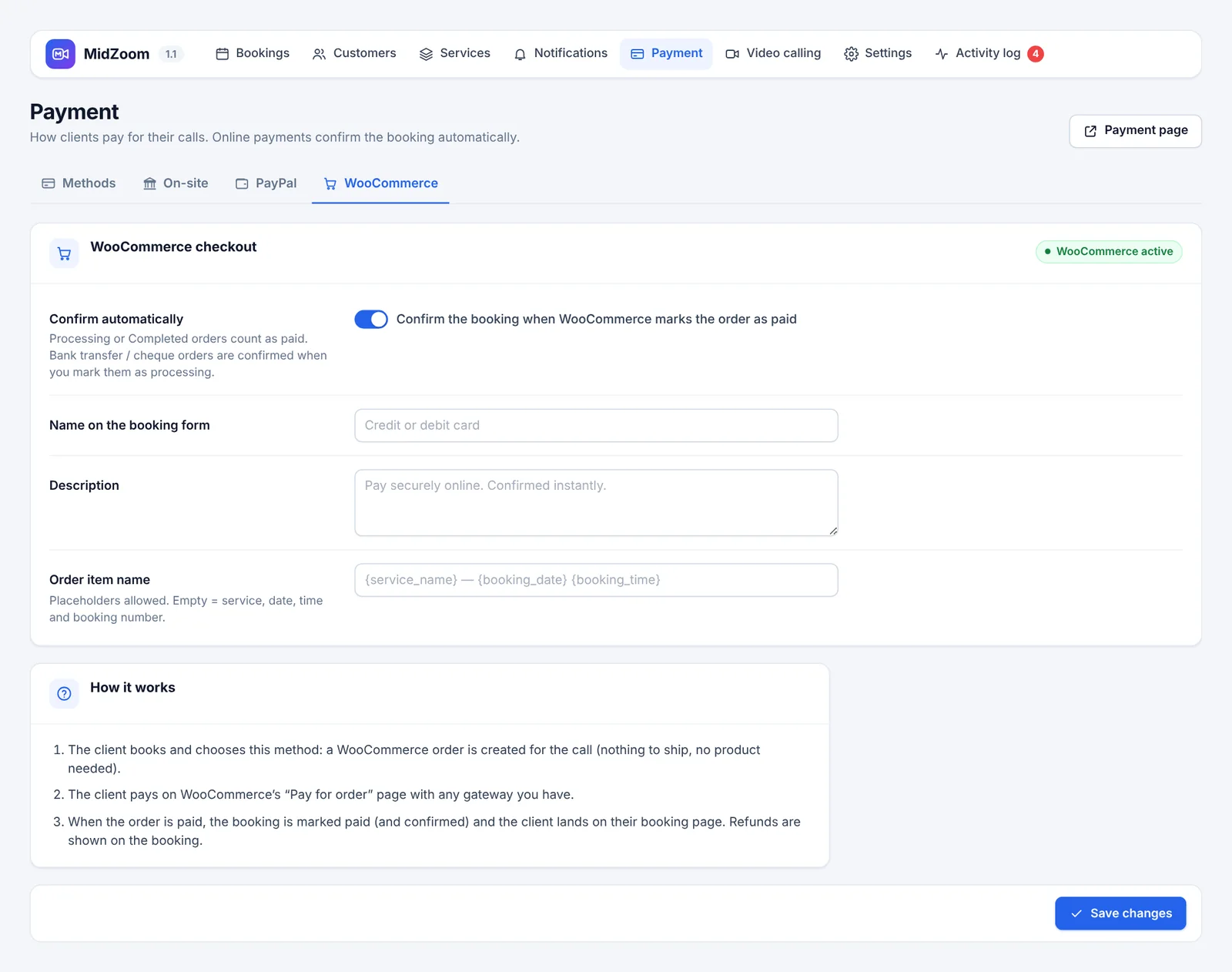
- Install and activate WooCommerce and set up at least one payment gateway in WooCommerce → Settings → Payments.
- In MidZoom → Payment → WooCommerce, switch it on and choose the name shown on the form (e.g. “Credit or debit card”).
- Optional: set the Order item name (placeholders allowed).
How it works
- The client chooses this method: a WooCommerce order is created for the call (nothing to ship).
- They pay on WooCommerce’s “Pay for order” page with any of your gateways.
- When the order is paid (Processing or Completed), the booking is marked paid and confirmed, and the client lands on their booking page. Refunds are shown on the booking.
The client’s payment page
Every booking has a private page (a long random link) where the client sees the booking, its status and how to pay — and can pay again if an online payment failed. It is the Payment page created on installation, with the [midzoom_payment] shortcode.
- Link it in messages with
{payment_link}. - Choose or recreate the page in Payment → On-site → Payment page.
- Private links expire some days after the call (Settings → Security).
Meeting links
The meeting link of each confirmed booking is created automatically and sent to the client. In MidZoom → Video calling choose the default for every service:
- Google Meet — created with your Google Calendar.
- Zoom — created with your Zoom account.
- No automatic link — use your backup link, or add links by hand in each booking.
Each service can use another provider (Services → Edit). The Backup meeting link (for example your personal Zoom room) is used whenever no link could be created.
Google Meet setup
MidZoom connects to your own Google Cloud app — clients never see it.
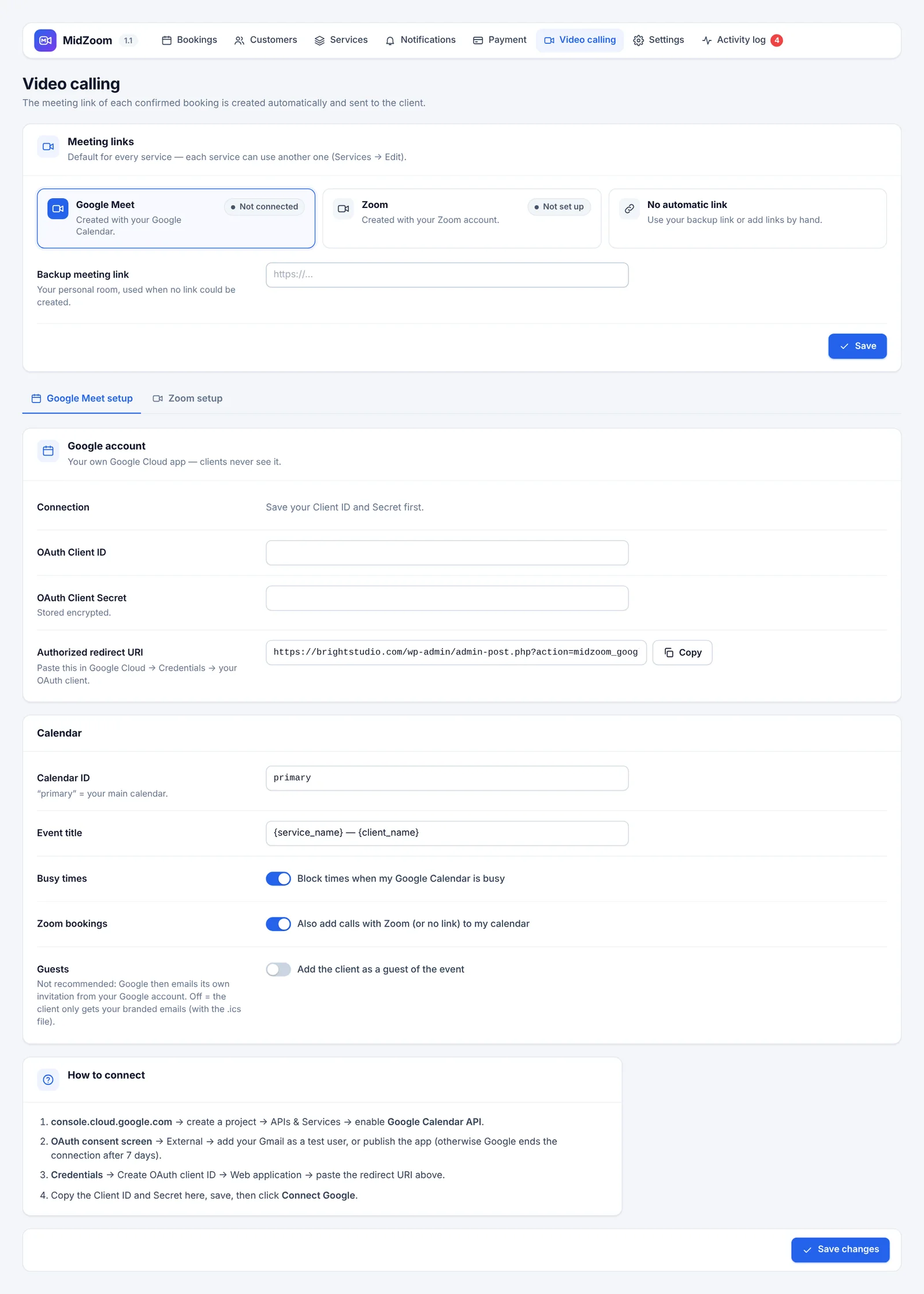
- Go to console.cloud.google.com, create a project, then APIs & Services → Library and enable the Google Calendar API.
- OAuth consent screen: choose External, fill in the app name and your email. Add your Gmail as a test user, or publish the app — otherwise Google ends the connection after 7 days.
- Credentials → Create credentials → OAuth client ID → Web application. Under Authorized redirect URIs, paste the Authorized redirect URI shown in MidZoom (use the Copy button).
- Copy the Client ID and Client Secret into MidZoom and save.
- Click Connect Google, choose your account and allow access.
Options
- Calendar ID —
primaryis your main calendar. - Event title — placeholders allowed, e.g.
{service_name} — {client_name}. - Block times when my Google Calendar is busy — your own events make those times unavailable on the form.
- Also add calls with Zoom (or no link) to my calendar — keep all your calls in one calendar.
- Add the client as a guest — not recommended: Google then sends its own invitation. Off = the client only gets your branded emails with the .ics file.
Zoom setup
MidZoom uses a Server-to-Server OAuth app from your own Zoom account — no Zoom review needed.
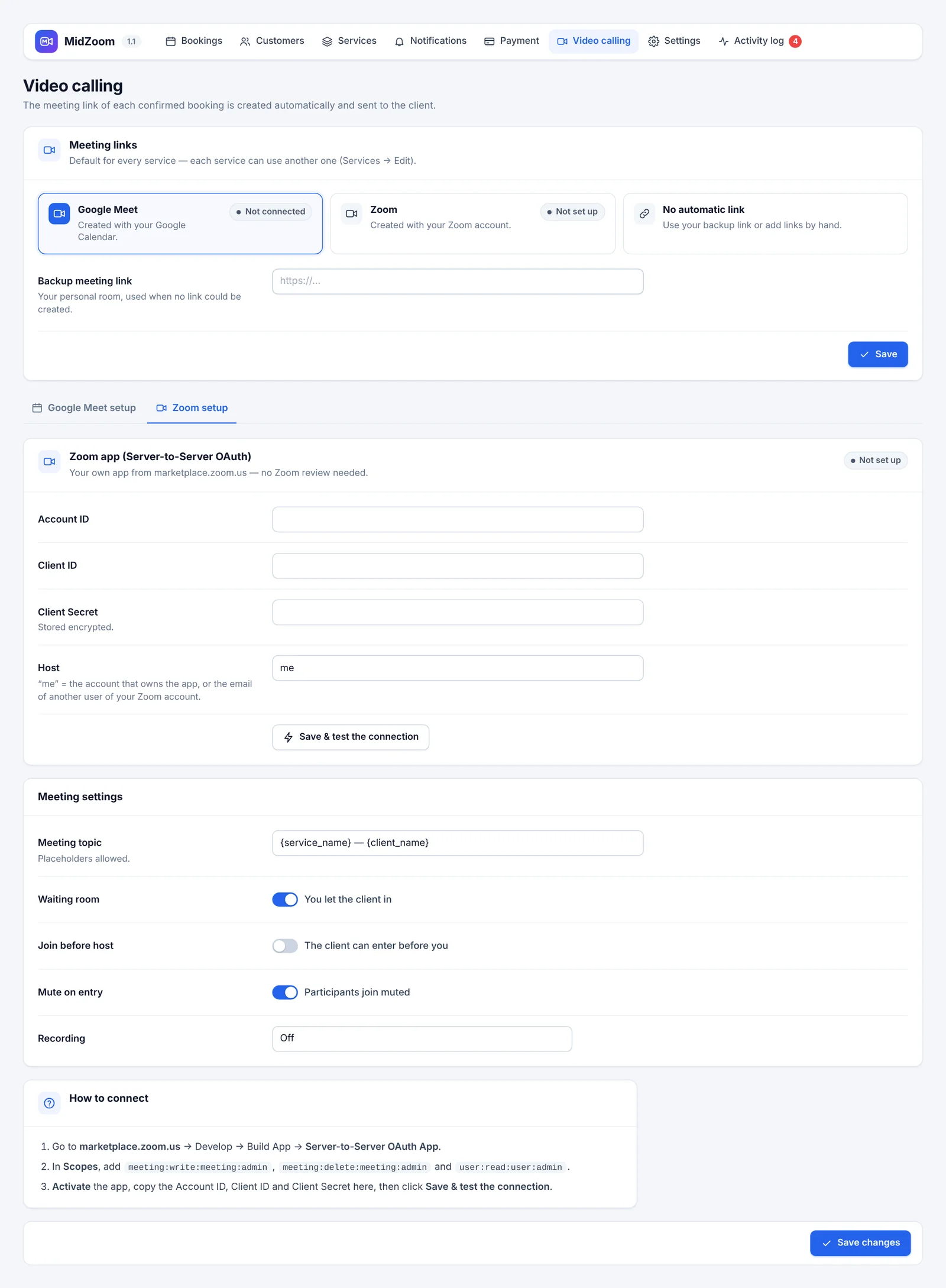
- Go to marketplace.zoom.us → Develop → Build App and choose Server-to-Server OAuth App.
- Fill in the app information. In Scopes, add
meeting:write:meeting:admin,meeting:delete:meeting:adminanduser:read:user:admin. - Activate the app, then copy the Account ID, Client ID and Client Secret into MidZoom.
- Click Save & test the connection.
Meeting settings
- Host —
me= the account that owns the app, or the email of another user of your Zoom account. - Meeting topic — placeholders allowed.
- Waiting room, Join before host, Mute on entry, and Recording (off, on your computer, or Zoom cloud on paid plans).
When a booking is cancelled, its Zoom meeting is deleted automatically.
General settings
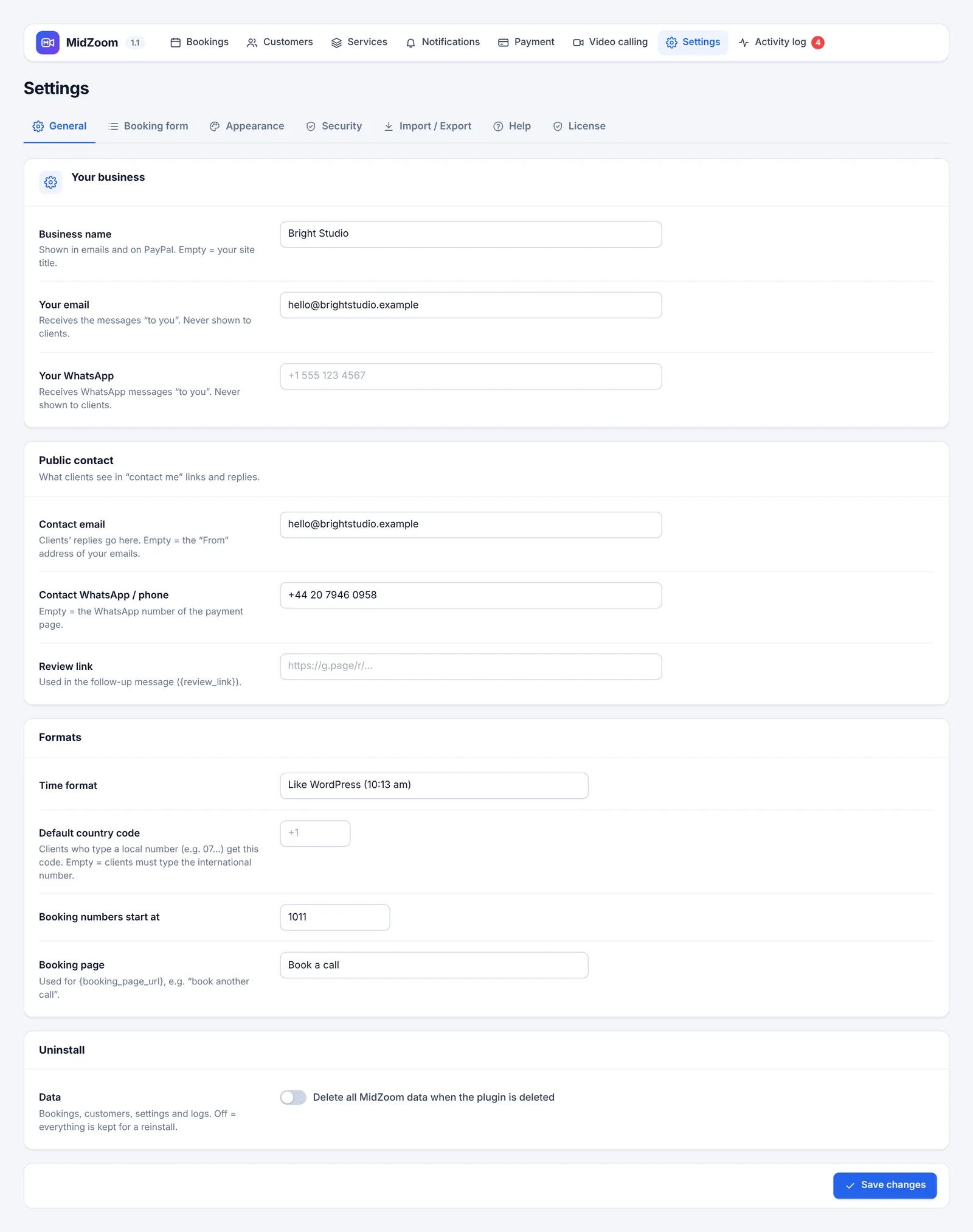
- Your business — business name (shown in emails and on PayPal), your email and your WhatsApp for the messages “to you”. They are never shown to clients.
- Public contact — the email and WhatsApp / phone clients see and reply to.
- Review link — used in the follow-up message (
{review_link}), e.g. your Google reviews page. - Formats — 12 h or 24 h time, default country code for clients who type a local number, and the first booking number.
- Booking page — used for
{booking_page_url}. - Uninstall — tick Delete all MidZoom data when the plugin is deleted only if you never want your bookings back.
Booking form fields & texts
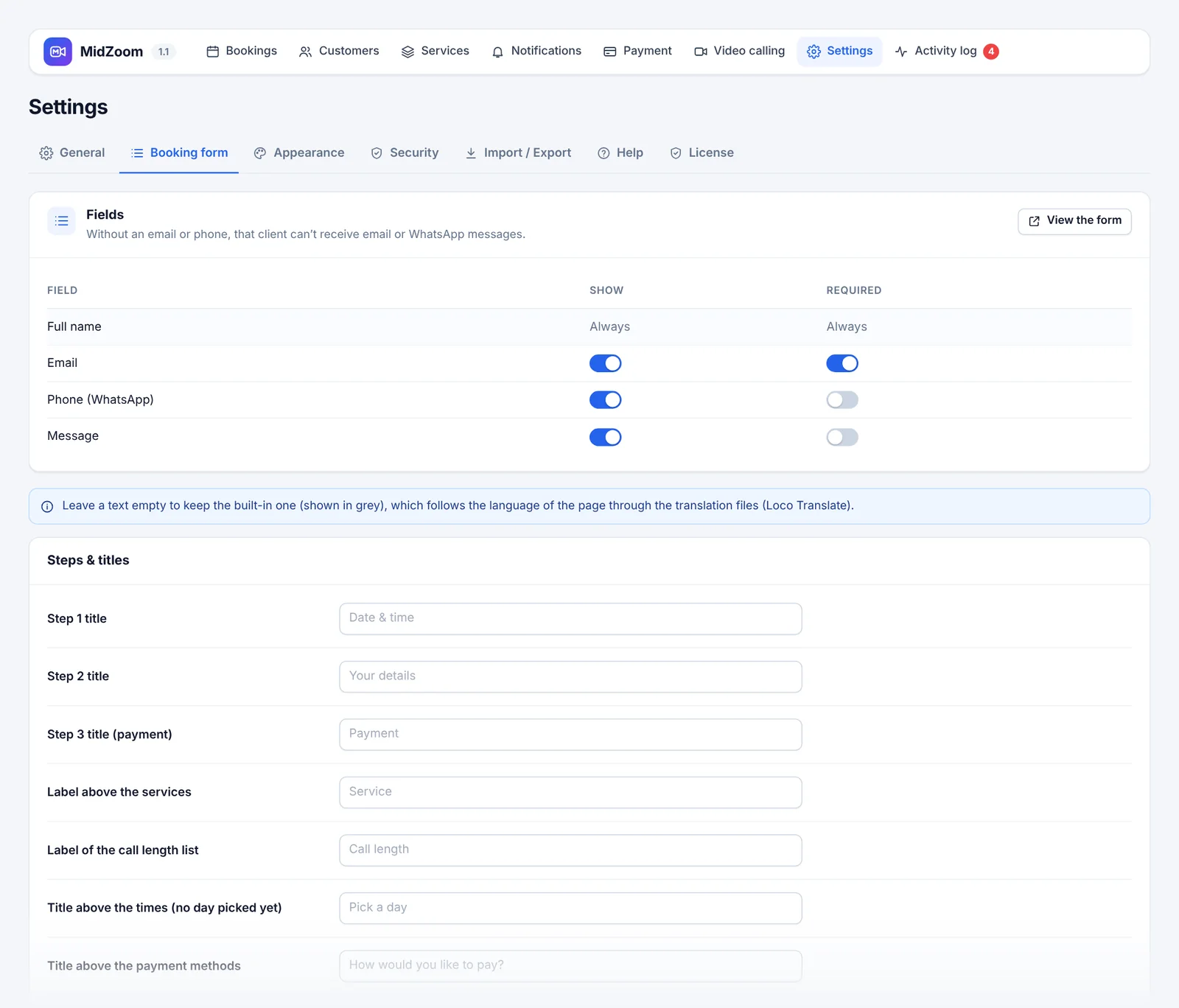
- Fields — show or hide, and make required, the email, phone (WhatsApp) and message fields. The name is always required. Without an email or a phone, that client can’t receive messages.
- Texts — change any text of the form and of the payment page: step titles, labels, placeholders, buttons, calendar tooltips, success and error messages, status names.
Leave a text empty to keep the built-in one (shown in grey). Built-in texts follow the language of the page through the translation files; your own texts can be translated with WPML or Polylang (see Translations).
Appearance
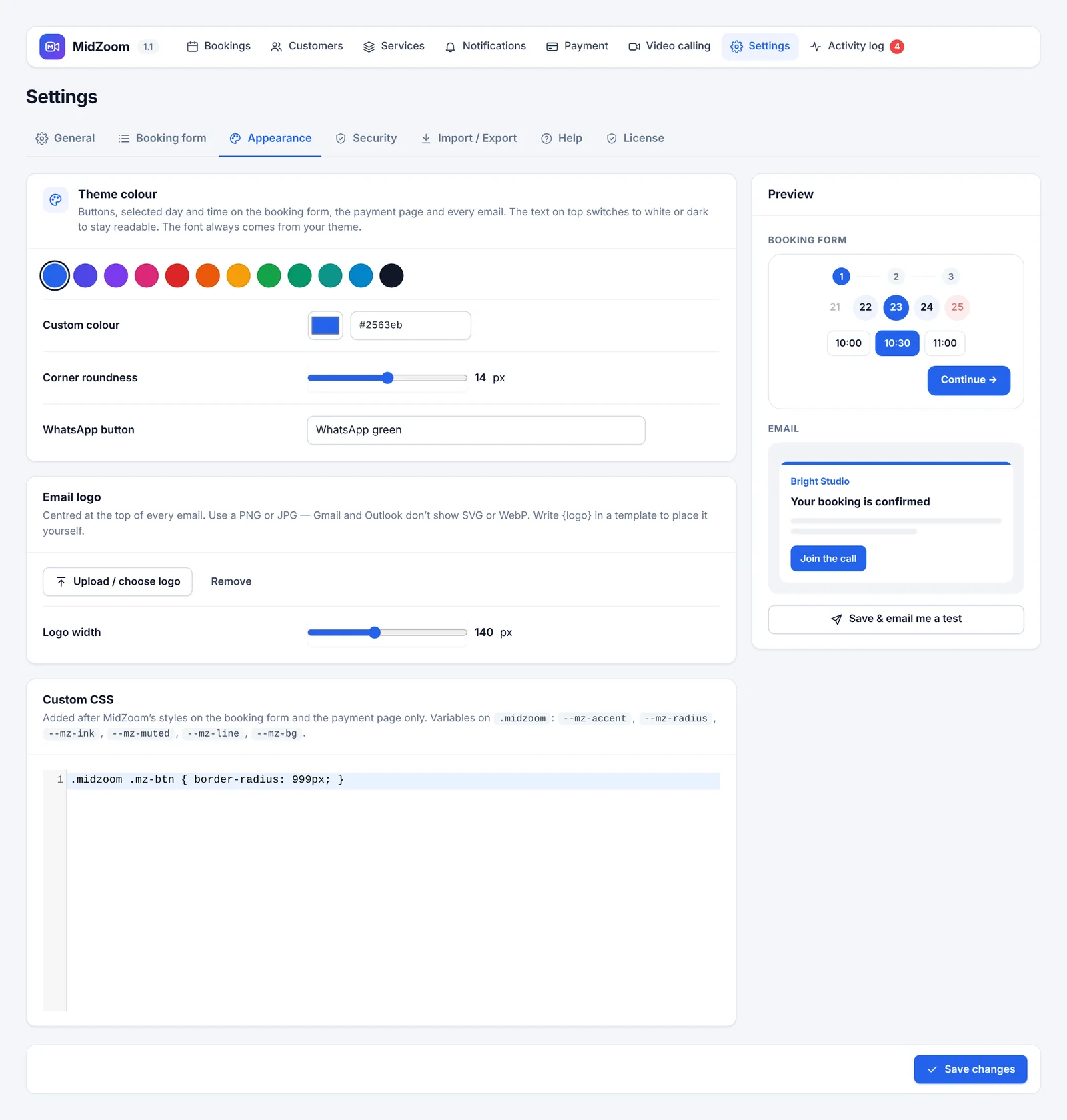
- Theme colour — buttons, selected day and time, the payment page and every email. The text on top switches to white or dark automatically to stay readable.
- Corner roundness — from square to very round.
- WhatsApp button — WhatsApp green or your theme colour.
- Email logo — centred at the top of every email. Use PNG or JPG (Gmail and Outlook don’t show SVG or WebP).
- Custom CSS — added to the booking form and the payment page only. Variables available on
.midzoom:--mz-accent,--mz-radius,--mz-ink,--mz-muted,--mz-line,--mz-bg.
The font always comes from your theme. Save & email me a test sends you a sample email with your new look.
/* Example: pill-shaped buttons */
.midzoom .mz-btn { border-radius: 999px; }Security & spam protection
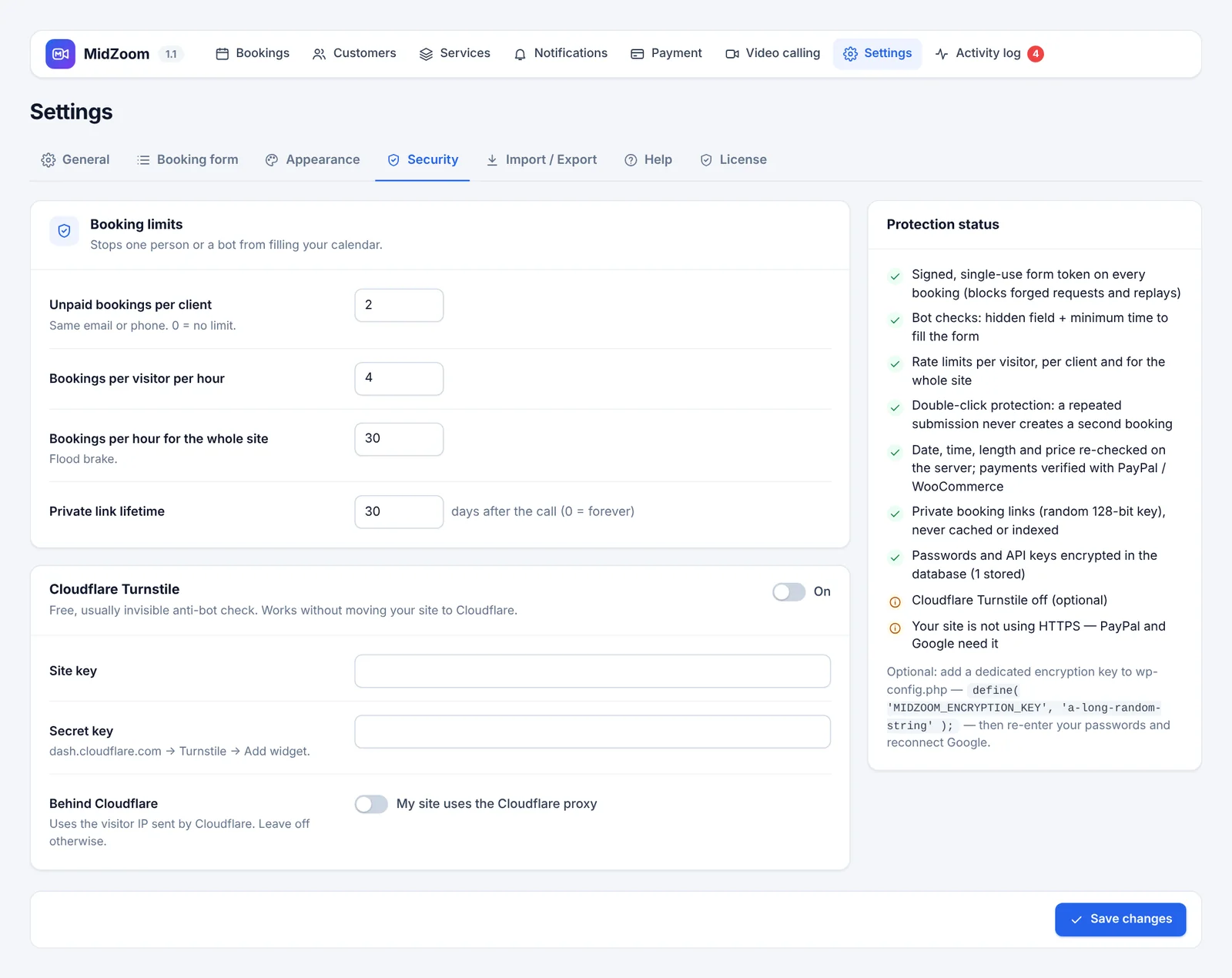
Protection is on out of the box: signed single-use form tokens, hidden bot traps, double-click protection, server-side checks of every date, time and price, verified payments, private links and encrypted passwords. You can tune:
- Unpaid bookings per client — default 2 (same email or phone).
- Bookings per visitor per hour — default 4. Bookings per hour for the whole site — default 30 (a flood brake).
- Private link lifetime — how many days after the call the client’s page stays available.
- Cloudflare Turnstile — a free, usually invisible anti-bot check. Create a widget at dash.cloudflare.com → Turnstile and paste the site key and secret key. It works without moving your site to Cloudflare.
- Behind Cloudflare — tick only if your site uses the Cloudflare proxy, so visitor IPs are read correctly.
Optional, for extra security: add a dedicated encryption key to wp-config.php, then re-enter your passwords and reconnect Google:
define( 'MIDZOOM_ENCRYPTION_KEY', 'a-long-random-string' );Import / Export
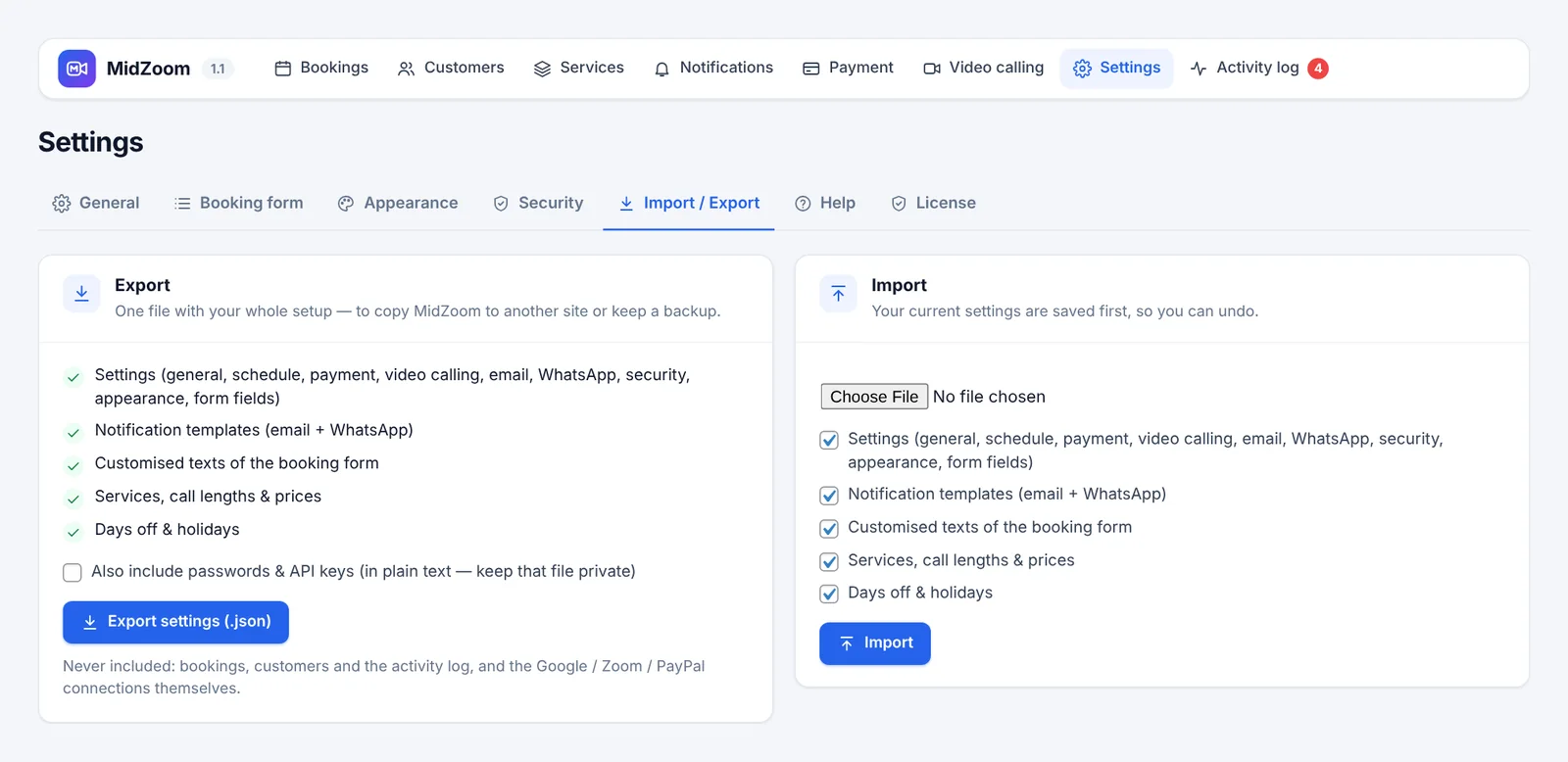
Export settings (.json) creates one file with your whole setup: settings, notification templates, customised form texts, services and days off. Use it as a backup, or to copy MidZoom to another site with Import.
- Choose which parts to export or import.
- Passwords and API keys are only included if you tick it (in plain text — keep that file private).
- Never included: bookings, customers, the activity log, and the Google / Zoom / PayPal connections themselves.
- Your current settings are saved before an import, so you can undo.
On-time reminders (cron job)
WordPress runs scheduled tasks only when someone visits your site. On a quiet site, reminders and follow-ups can be late. Fix it with a server cron job every 5 minutes:
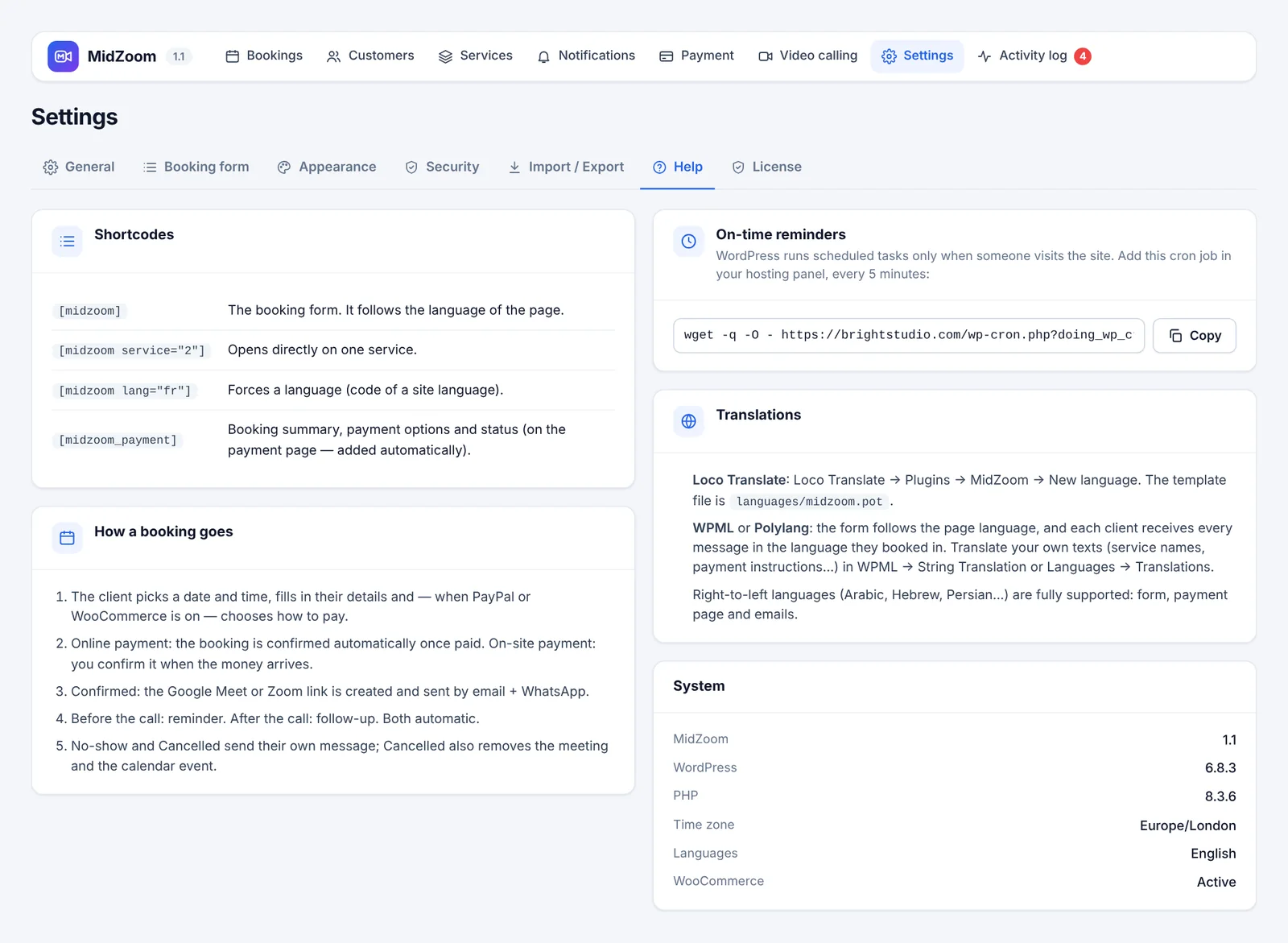
- Open MidZoom → Settings → Help and copy the command under On-time reminders. It looks like this:
wget -q -O - https://yoursite.com/wp-cron.php?doing_wp_cron >/dev/null 2>&1 - Hostinger: hPanel → Advanced → Cron Jobs → Custom, paste the command, choose every 5 minutes. cPanel: Cron Jobs → Common settings “Once per five minutes”.
- Check Activity log: “Automatic tasks” should show a recent run.
Activity log
MidZoom → Activity log records everything: bookings, payments, emails, WhatsApp messages, Google and Zoom links, automatic tasks, admin actions and errors. It is the first place to look when something doesn’t work.
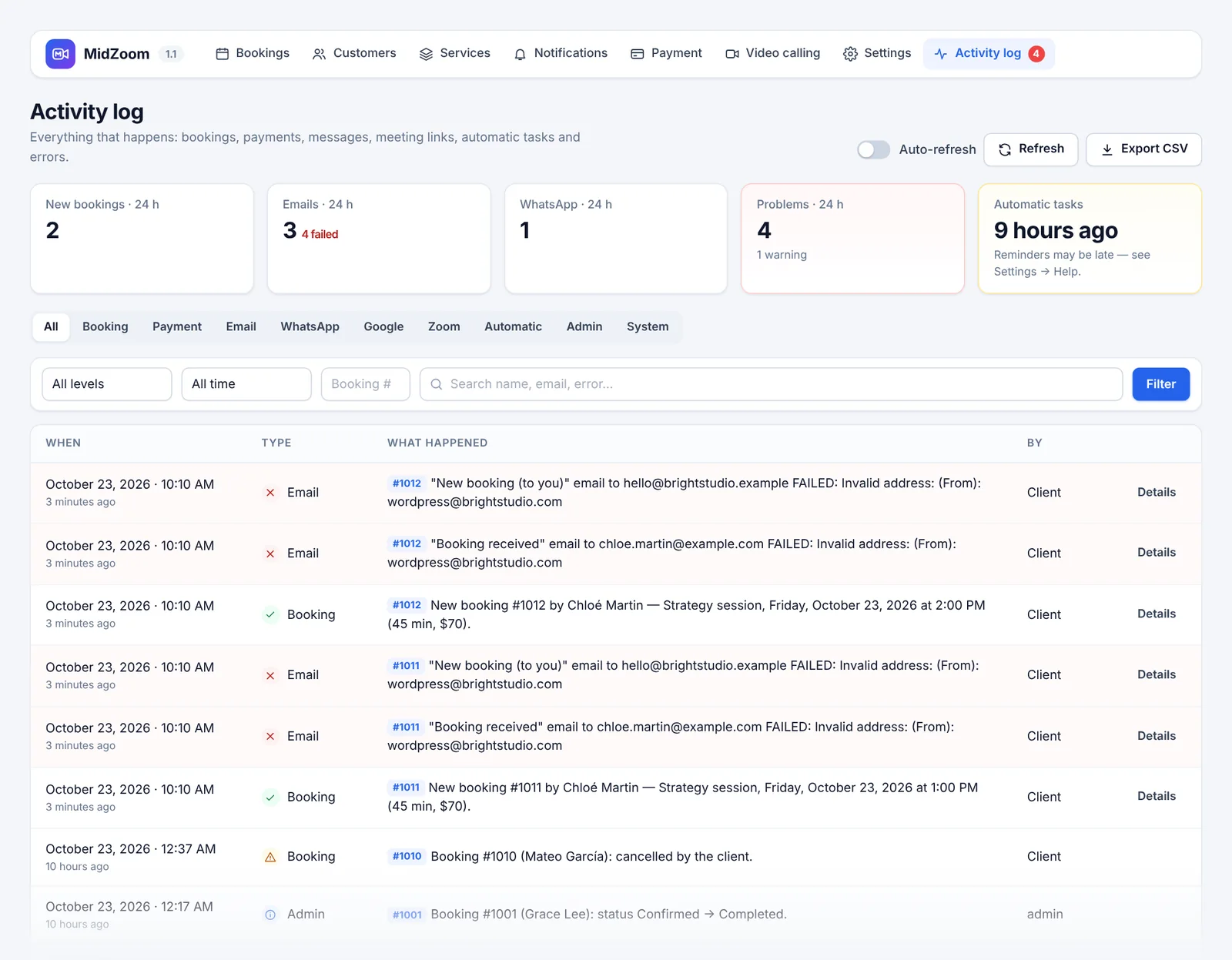
- The summary shows new bookings, emails, WhatsApp messages and problems in the last 24 hours, and when automatic tasks last ran.
- Filter by type, level (problems only, success, info, warning, error) and period.
- Details shows the technical information of an entry (passwords are never stored).
- Auto-refresh, Export CSV, and the log retention in days.
A red number next to Activity log in the menu means errors in the last 24 hours.
Translations
MidZoom is written in English and is fully translatable: the admin, the booking form, the payment page and the emails.
With Loco Translate (free)
- Install the Loco Translate plugin.
- Go to Loco Translate → Plugins → MidZoom → New language, choose the language and the location “System” or “Custom”.
- Translate the texts and save. The template file is
languages/midzoom.pot.
The form and the emails then appear in your site language. Each client receives every message in the language they booked in.
Your own texts
Texts you type yourself (service names, form texts, payment instructions) are translated with WPML or Polylang, see below. Email templates can be edited per language in Notifications.
WPML & Polylang
- Put
[midzoom]on the booking page of each language (for example the English and the French version of the page). The form follows the language of the page; use[midzoom lang="fr"]to force one. - Translate your own texts — service names and descriptions, form texts, payment instructions — in WPML → String Translation or Languages → Translations (Polylang), group “MidZoom”.
- Translate the Payment page too, so clients land on the page in their language.
- In Notifications, choose the language at the top of a message to edit its version in that language.
- Messages “to you” are sent in the language chosen in Settings → General → Language of messages to you (shown when your site has several languages).
Right-to-left languages
Arabic, Hebrew, Persian, Urdu and other right-to-left languages are supported everywhere: the booking form, the payment page and the emails switch direction automatically, with correct number and price display.
License & updates
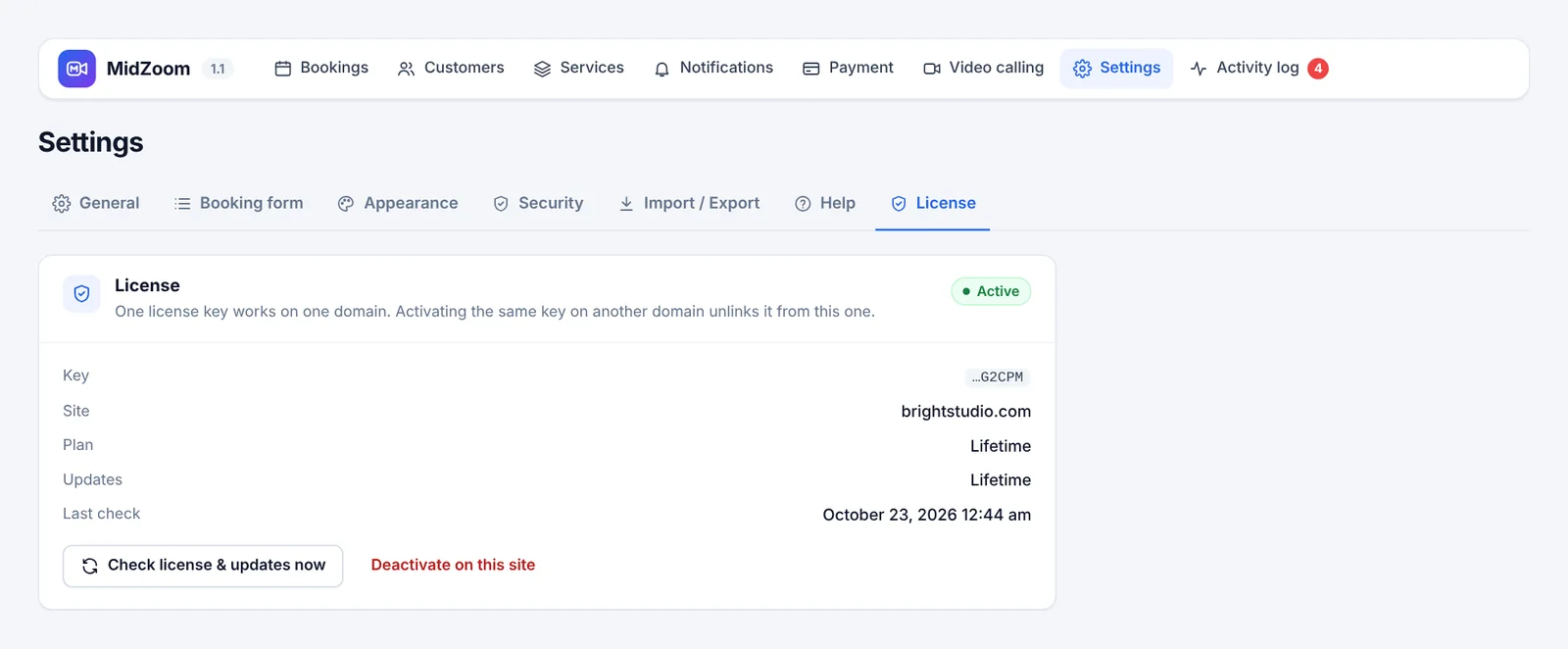
Annual or Lifetime
Both plans include every feature. The Plan row in Settings → License shows which one you have.
- Lifetime — pay once; MidZoom and its updates never expire.
- Annual — works for one year from your purchase, with updates and support. We email you 30, 7 and 1 day before the end date, and MidZoom shows a Renew now notice in your admin during the last 14 days.
- If an Annual license isn’t renewed, MidZoom stops on its end date: the admin shows a Renew license screen and the booking form tells visitors that online booking is unavailable. Your bookings, customers and settings are all kept.
- Renewing takes one click: the Renew button (in MidZoom or in the reminder email) opens checkout on midzoom.com with your key already filled in. You pay with PayPal or a card and the license is extended by one year — from your current end date if you renew early, so you lose nothing. The same key keeps working; there is nothing to re-enter. Open MidZoom in your admin afterwards and it unlocks right away.
- Renewal is never automatic: you are not charged unless you click Renew and pay.
Domains
- One key works on one domain. Activating it on a new domain unlinks it from the old one automatically; the old site locks within about 12 hours.
- To stop a key from being passed between sites, it can move to a new domain up to 3 times per 30 days. Need more? Contact support.
- Local test sites (
localhost,*.local,*.test) don’t count. - Deactivate on this site frees your key (MidZoom locks again on this site).
- Check license & updates now refreshes the license and looks for a new version.
- MidZoom checks the license twice a day. If the license server can’t be reached, MidZoom keeps working normally for up to 3 weeks (but an Annual license still ends on its end date).
- Updates arrive in Dashboard → Updates while your license is active.
Data sent to the license server: your key, your site address, a random installation ID and the MidZoom, WordPress and PHP versions. Never your bookings or customers.
Troubleshooting
Clients don’t receive emails, or they go to spam
Set up SMTP with a mailbox of your own domain and send a test. Look in the Activity log (filter “Email”): failed emails show the exact reason.
No times are available on the form
Check Working hours (day switched on, ranges like 09:00-17:00), Minimum notice, Clients can book up to, your days off and the WordPress time zone. If Google Calendar is connected with “Block busy times”, your own events also block times.
Reminders arrive late or not at all
Add the cron job. Reminders and follow-ups are sent for Confirmed bookings only.
The meeting link is empty in the confirmation
Google or Zoom is not connected, or the connection failed: see the booking’s History or the Activity log. Set a Backup meeting link in Video calling so there is always a link.
Google disconnects after a few days
Your Google app is in “Testing” mode: Google ends the connection after 7 days. In Google Cloud → OAuth consent screen, click Publish app, then reconnect.
Zoom: “Save & test the connection” fails
Check that the app is a Server-to-Server OAuth app, that it is activated, and that the three scopes are added. The Host must be me or the email of a user of the same Zoom account.
PayPal payments don’t work
Sandbox credentials only work with Sandbox ticked, Live credentials only with it unticked. Your site needs HTTPS.
A WooCommerce booking stays unpaid
The booking is confirmed when the order is Processing or Completed. Bank transfer / cheque orders wait until you change the order status.
The booking form doesn’t show
Make sure the license is active and at least one service is active. As an administrator you see a hint on the page explaining what is missing.
I use a cache plugin
MidZoom loads times live, so the booking page can be cached. Exclude the Payment page from caching (most cache plugins already skip pages with query strings).
License: “already active on another domain” or “moved too many times”
A key works on one domain and can move 3 times per 30 days. If you hit the limit, contact support with your key and we’ll reset it.
License: “not connected to a license server”
This copy wasn’t downloaded from midzoom.com. Use the download button in your purchase email (or ask for a new link in a ticket) and install it over this one.
MidZoom says my annual license ended
Click Renew license on the MidZoom screen and complete the checkout. Then open MidZoom again (or click Check again) — it unlocks immediately with the same key. Nothing was deleted while it was locked.
I lost my license key
Open a ticket (topic “License, renewal or invoice”) or email us from the address you used to buy. We’ll send the key to that address.
Frequently asked questions
Where is my data stored?
In your own WordPress database. API keys and passwords are encrypted. Nothing about your bookings or clients is sent to us.
What happens to my data if I delete the plugin?
It is kept, so you can reinstall later — unless you tick “Delete all MidZoom data when the plugin is deleted” in Settings → General.
Can clients book in their own time zone?
Times are shown in your site’s time zone, and the emails say which time zone ({booking_timezone}). The calendar file makes the call appear at the right local time in the client’s calendar.
Can I offer free calls?
Yes — set the price of a call length to 0. Free calls skip the payment step.
Can I move MidZoom to a new domain?
Yes. Use Import / Export to copy your setup, then activate your key on the new domain — the old one is unlinked automatically.
Annual or Lifetime — which should I choose?
Same plugin, same features. Annual is $49 per year; Lifetime is $199 once, with updates for life. If you plan to use MidZoom for more than four years, Lifetime costs less.
Can I switch from Annual to Lifetime?
Yes — buy a Lifetime license and activate its key on your site (it replaces the annual one). Ask in a ticket if you’d like help.
How do I get support?
Open a ticket on midzoom.com — no account needed. Add your license key, your site address and, if possible, a screenshot of the Activity log entry. We answer by email, and you can follow the conversation with the private link we send you.